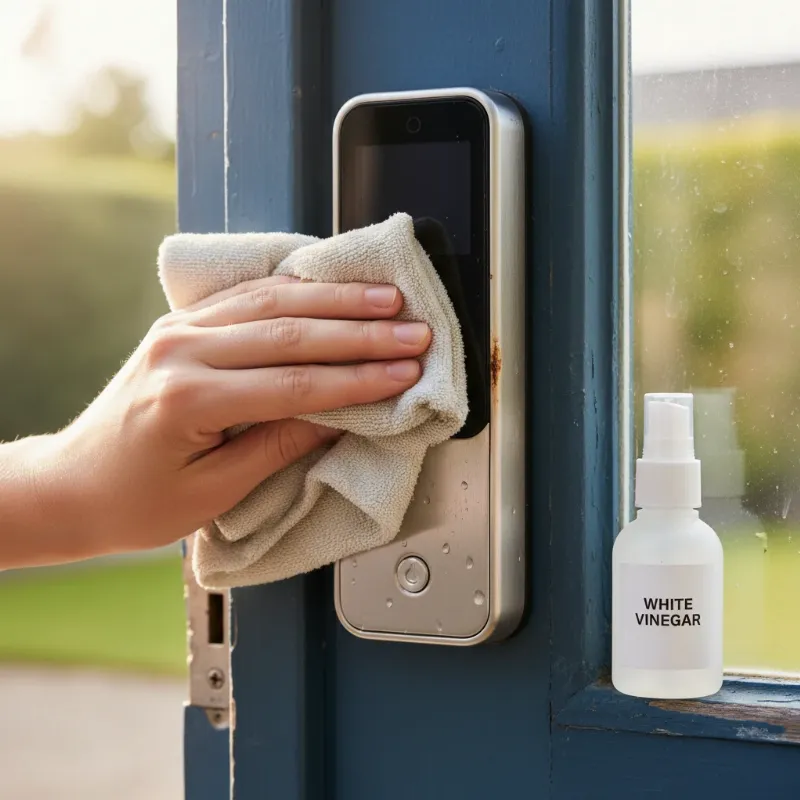
There’s little that can be as frustrating as reaching for your phone to unlock your smart door, only to find your device stubbornly displaying “Lock Offline.” This common issue transforms the convenience of smart home technology into a momentary headache, rendering your smart lock unresponsive to remote commands and often disabling its advanced security features. As an experienced technician in smart lock technology, I understand the annoyance this causes. This comprehensive guide is designed to help you diagnose and resolve why your smart lock has gone offline, restoring seamless control and peace of mind.
What Are Smart Locks?
Smart locks are advanced electromechanical devices designed to perform locking and unlocking operations on a door when they receive instructions from an authorized device using a wireless protocol and a cryptographic key to execute the authorization process. Far beyond traditional deadbolts, these innovative devices offer keyless entry, remote access control, and enhanced security features. They typically connect to your home network or smartphone via various wireless technologies, including Wi-Fi, Bluetooth, Z-Wave, or Zigbee. Wi-Fi and Bluetooth models connect directly or indirectly to your home network, while Z-Wave and Zigbee locks usually require a dedicated smart home hub to facilitate communication. Understanding these connection types is crucial, as each plays a role in how a lock might go offline.
Why Do Smart Locks Go Offline? Common Causes
When your smart lock reports an “offline” status in its companion app, it signifies a disruption in communication between the lock and your controlling device or network. Pinpointing the exact cause is the first step toward a solution. Several common culprits can lead to this frustrating scenario, ranging from simple battery issues to more complex network problems.
Often, the primary reason for a smart lock losing connection is low or depleted batteries. Many smart locks are battery-powered, and as power wanes, their ability to maintain a stable wireless signal diminishes. Another frequent cause involves connectivity issues. A weak Wi-Fi signal, interference from other devices, an overloaded network, or even a power outage affecting your router can sever the lock’s connection. Similarly, Bluetooth-enabled locks may go offline if they move out of range of your smartphone or hub.
Outdated firmware or app software can also be a significant factor. Manufacturers frequently release updates to improve performance, enhance security, and fix bugs. If your lock’s firmware or the app on your phone isn’t up to date, it can lead to compatibility problems and connectivity drops. Changes to your home network, such as a new Wi-Fi router, a changed network name (SSID), or a new Wi-Fi password, will inevitably cause your smart lock to disconnect until it’s reconfigured. Lastly, temporary app glitches, incorrect app permissions on your smartphone, or even a rare hardware malfunction within the lock itself could be contributing factors. For locks relying on a separate smart home hub (like Z-Wave or Zigbee devices), the hub itself going offline will render all connected locks unreachable.
Troubleshooting Your Smart Lock: Step-by-Step Solutions
Encountering an “offline” status can be resolved by systematically working through a series of troubleshooting steps. Don’t panic; most issues are minor and easily fixable.
1. Check and Replace Batteries
|
Our Picks for the Best smart locks in 2026
As an Amazon Associate I earn from qualifying purchases.
|
||
| Num | Product | Action |
|---|---|---|
| 1 | Smart Door Handle Lock with Keypad: Yamiry Fingerprint Smart Knob - Keyless Entry Digital Lock for Front Door - Deadbolt with APP - Generate Passcode Remotely - DIY Installation |

|
| 2 | Schlage Encode Smart WiFi Deadbolt Lock for Front Door - Keyless Entry with App or Touchscreen - Works with Alexa, Hey Google, & Airbnb - Create Codes for Guests - Matte Black |
|
| 3 | Smart Door Lock with Camera Fingerprint Keyless Entry Door Lock Electronic Deadbolt with Keypad Code, App Remote Control, Auto Unlock for Front Door |
|
| 4 | Tapo Smart Wi-Fi Deadbolt Door Lock – Keyless Tactile Buttons, Customized Access with in-App Monitoring, Auto-Lock, IP54 Weatherproof, BHMA Grade 3, Compatible with Standard Door Sizes, Tapo DL100 |
|
| 5 | TEEHO TE001 Keyless Entry Door Lock with Keypad - Smart Deadbolt Lock for Front Door with 2 Keys - Auto Lock - Easy Installation - Matte Black |
|
| 6 | Wyze Auto-Lock Bolt v2, Fingerprint Keyless Entry Smart Lock, AI Learning Scanner with Wi-Fi Front Door Lock Deadbolt, Auto-Lock, 8 Months Battery, BHMA2, IP53, Anti-Peep Keypad, Backup Keys |
|
| 7 | Schlage Encode Smart WiFi Deadbolt Lock for Front Door - Keyless Entry with App or Touchscreen - Works with Alexa, Hey Google, & Airbnb - Create Codes for Guests - Satin Nickel Silver |
|
| 8 | Wyze Palm Lock, Smart Door Lock with Palm Vein Recognition, Keyless Entry Smart Locks for Front Door, Keypad, Auto Lock, Dual Battery, Wi-Fi, Works with Alexa & Google, BHMA, IP53, Mechanical Key |
|
| 9 | ULTRALOQ U-Bolt Pro WiFi Smart Lock with Door Sensor, 8-in-1 Keyless Entry Door Lock with Fingerprint ID, App Remote Control, Built-in WiFi Keypad Deadbolt, Auto Unlock, IP65 Waterproof, Easy Install |
|
| 10 | Yale Security Assure Lock 2 Deadbolt, Black Suede Keyed Smart Entry Door Lock with Wi-Fi Connected Keypad for Code Entry and Remote Access, YRD410-WF1-BSP |
|
This is often the simplest and most overlooked solution. Many smart locks are entirely battery-powered, and their wireless communication capabilities diminish significantly when battery levels are low. If your lock uses disposable batteries, replace them with fresh, high-quality ones. If it’s a rechargeable model, ensure it’s fully charged. This small step can often instantly bring your lock back online.
2. Power Cycle Everything
A simple reboot can often clear temporary software glitches on any electronic device. Start by power cycling your smart lock; this might involve removing and reinserting the batteries, or pressing a dedicated reboot button (consult your lock’s manual for specific instructions). Next, restart your smartphone to refresh its network connections and app processes. Finally, power cycle your Wi-Fi router and modem by unplugging them for 30 seconds and then plugging them back in. If you use a smart home hub, restart it as well. This ensures all devices are starting with fresh connections.
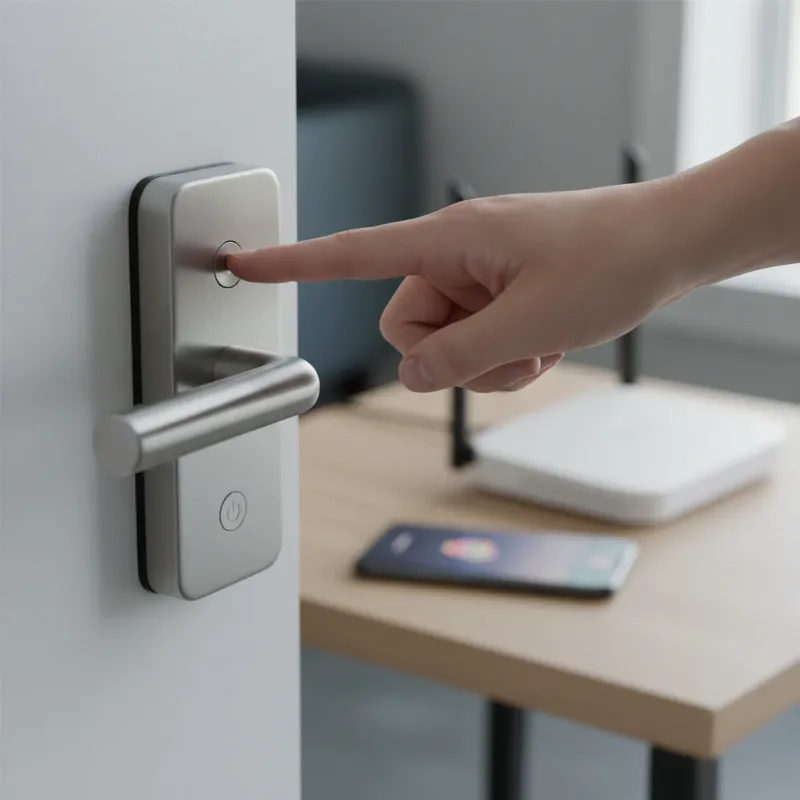 A hand reaching to a smart lock, symbolizing a power cycle or battery replacement, with a phone and Wi-Fi router in the background.
3. Verify Network Connection
A stable internet connection is paramount for Wi-Fi-enabled smart locks. First, ensure your home Wi-Fi network is active and working by testing other devices connected to it. If your lock uses Wi-Fi, confirm it’s within a reasonable range of your router, as signal strength can weaken with distance and through walls. Consider using a Wi-Fi extender if the signal is consistently weak near the door. For Bluetooth locks, ensure your phone is within close proximity (typically 10-30 feet) to the lock. If your network details have changed (new password, new SSID), you will need to reconnect your lock to the updated network settings through its companion app, following the manufacturer’s instructions for adding a new device or updating network credentials.
4. Update Firmware and App
Outdated software is a common cause of connectivity issues and bugs. Smart lock manufacturers regularly release firmware updates for the lock itself and updates for the companion mobile app. Check your smart lock’s app store listing for the latest version and install any available updates. Within the app, navigate to your lock’s settings or device information to check for and install any pending firmware updates. Keeping both the app and the lock’s firmware current can prevent many connectivity problems and ensure optimal performance. Some updates may even temporarily take the device offline, with reconnection occurring within 48 hours.
5. Review App Permissions
For your smart lock app to function correctly and communicate with the lock, it requires certain permissions on your smartphone. Go into your phone’s settings and navigate to the app permissions section. Ensure the smart lock app has necessary permissions granted, such as access to Bluetooth, Wi-Fi, and location services. Without these, the app may be unable to discover or communicate with your lock, leading to an “offline” status.
6. Recalibrate Your Lock
Some smart locks require occasional calibration to accurately determine their locked and unlocked positions. If your lock is physically moving but not reporting its status correctly, or if it seems “confused,” recalibration might be necessary. Refer to your smart lock’s manual or the in-app settings for instructions on how to perform a calibration procedure. This ensures the lock’s internal sensors align with its physical state, often resolving discrepancies in its reported status.
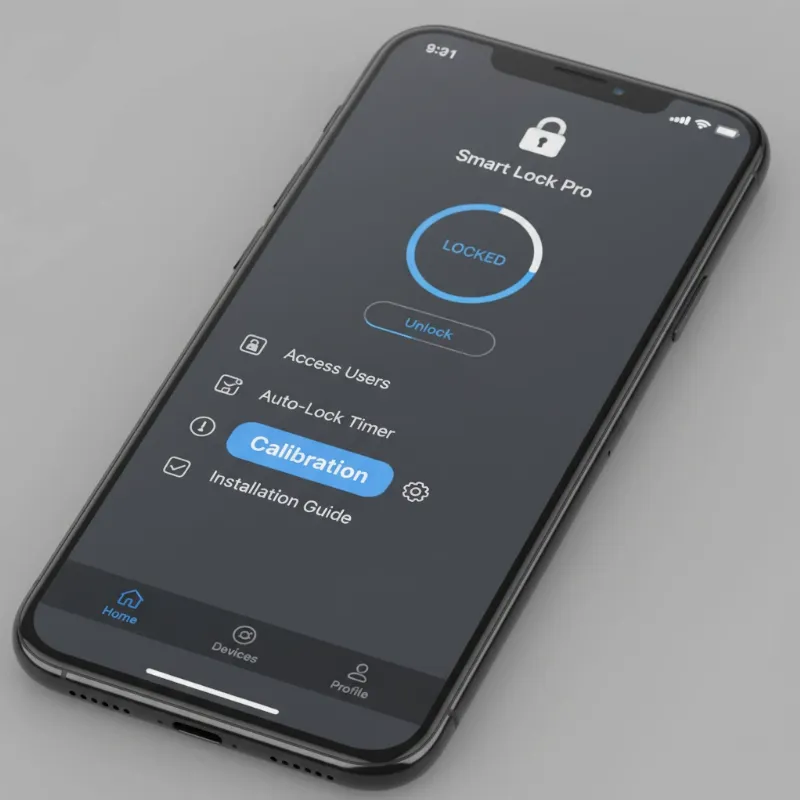 A digital interface showing smart lock settings with a "calibrate" option highlighted, illustrating technical adjustment.
7. Re-pair or Re-add the Lock
If all previous steps fail, sometimes the connection needs a complete refresh. This involves removing the smart lock from your app and then adding it back as a new device. Be aware that this step might erase custom settings or user codes, so note them down beforehand. Follow your manufacturer’s specific instructions for unpairing and re-pairing, as the process varies between brands. This process forces the lock to establish a completely new connection with your network and app, often resolving deep-seated connectivity glitches.
8. Check for Obstructions and Interference
Physical obstructions and wireless interference can significantly impact your smart lock’s signal strength. Large metal objects, thick walls, or even other electronic devices operating on similar frequencies (like microwaves or cordless phones) can degrade Wi-Fi or Bluetooth signals. Try to minimize physical barriers between your lock and its connection source (router or hub). If possible, temporarily relocate potential sources of interference to see if the “offline” status resolves, indicating an environmental factor is at play.
“A smart lock is only as smart as its connection. Addressing ‘offline’ status quickly is crucial for maintaining both convenience and security.” – Nguyễn Văn An, Cybersecurity Expert
Advanced Troubleshooting and When to Seek Help
If you’ve diligently worked through all the standard troubleshooting steps and your smart lock remains stubbornly offline, it might be time for more drastic measures or professional assistance.
Factory Reset
A factory reset should always be considered a last resort. This action will wipe all data, settings, user codes, and network configurations from your smart lock, returning it to its original, out-of-the-box state. You will then need to set up the lock again from scratch. While often effective at resolving persistent software issues, it’s a time-consuming process that requires re-entering all previous configurations. Consult your lock’s manual for the specific factory reset procedure, as it varies by model.
Contacting Manufacturer Support
If even a factory reset doesn’t resolve the “offline” issue, it’s highly probable that there’s a hardware malfunction or a unique software bug specific to your lock model. At this point, contacting the manufacturer’s customer support is the best course of action. Be prepared to provide them with a detailed account of all the troubleshooting steps you’ve already taken, your lock’s model number, and its current symptoms. This information will help their support team diagnose the problem more efficiently and guide you toward a resolution, which might include a warranty replacement if the lock is defective.
 A person on a phone talking to customer support, with a smart lock and troubleshooting guides on a table, conveying seeking help.
Preventing “Lock Offline” Issues
Proactive maintenance can significantly reduce the chances of your smart lock ever going offline. Incorporating a few simple habits into your routine will help ensure continuous connectivity and reliability.
Regularly checking and replacing the batteries in your smart lock is paramount. Many apps provide low battery warnings; heed them promptly. For optimal performance, always use high-quality, reputable batteries. Staying on top of firmware and app updates is also crucial. Enable automatic updates for the app on your smartphone, and periodically check the app for any new firmware releases for your lock. These updates often contain stability improvements and bug fixes that prevent connectivity problems.
Ensure your Wi-Fi network coverage is strong and stable in the vicinity of your smart lock. If your router is far away or you have multiple dead zones, consider investing in a Wi-Fi extender or mesh system to boost the signal. Try to avoid placing large metal objects or heavy electronics directly between your smart lock and your router or smart home hub, as these can interfere with wireless signals. By adopting these preventative measures, you can enjoy uninterrupted functionality and the full benefits of your smart lock’s advanced features.
Conclusion
A smart lock displaying “offline” status is more than just an inconvenience; it can compromise your home’s accessibility and security features. By systematically troubleshooting the common causes—from low batteries and Wi-Fi issues to outdated software and app permissions—you can restore connectivity and regain full control over your intelligent entry system. Remember that a reliable connection is the backbone of any smart home device, especially one as critical as your door lock. Regular maintenance, including battery checks and software updates, plays a vital role in preventing these frustrating disconnections. Don’t let an offline status diminish your smart home experience. Take control, follow these steps, and ensure your smart lock is always ready to keep your home safe and accessible.
Is your smart lock working seamlessly now, or are you still navigating connectivity challenges?
Frequently Asked Questions
How often should I replace smart lock batteries?
The frequency depends on usage, battery type, and environmental factors, but generally, smart lock batteries last between 6 months to a year. Many smart lock apps provide low battery alerts, so it’s best to replace them as soon as you receive a notification, or proactively every 6-9 months to avoid unexpected disconnections.
Can my Wi-Fi signal be too weak for a smart lock?
Yes, absolutely. A weak Wi-Fi signal is a very common reason for a smart lock to go offline. Smart locks, especially those directly connecting to Wi-Fi, require a stable and sufficiently strong signal to maintain communication. If your lock is far from your router or has many obstructions, its connection can become unreliable.
Will a firmware update fix an offline lock?
A firmware update can often resolve an offline lock status if the disconnection is due to a known software bug or compatibility issue that the update addresses. Manufacturers frequently release updates to improve device stability and connectivity. However, if the issue is hardware-related or due to poor Wi-Fi, an update alone may not fix it.
Is a factory reset always the last option?
Yes, a factory reset should always be the absolute last option after all other troubleshooting steps have been exhausted. Performing a factory reset will erase all your lock’s settings, user codes, and network configurations, requiring you to set up the device from scratch. Only proceed with a factory reset if directed by manufacturer support or as a final attempt to resolve persistent issues.