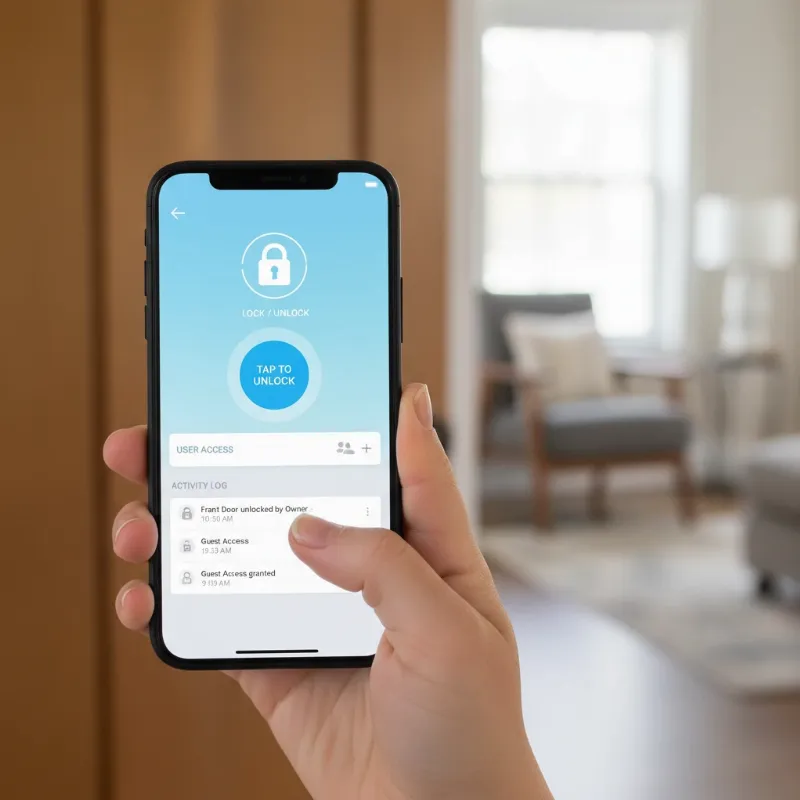
The advent of smart lock technology has redefined home security, bringing unparalleled convenience and advanced safety features to our doorsteps. Yet, to truly harness the power of these intelligent devices, ensuring their optimal performance is crucial. One often-overlooked aspect of smart lock maintenance is calibration, a fundamental process that ensures your lock operates with precision every single time. Without proper calibration, even the most sophisticated smart lock can become a source of frustration, failing to lock or unlock seamlessly.
This comprehensive guide will walk you through everything you need to know about smart lock calibration, from understanding its importance to performing the steps and troubleshooting common issues. Our goal is to empower you to maintain your smart lock for perfect, reliable performance, enhancing both your home’s security and your peace of mind.
What is Smart Lock Calibration?
Smart lock calibration is the process of teaching your lock the exact physical limits of its locking and unlocking mechanisms within your doorframe. Essentially, you’re instructing the smart lock on the precise “locked” and “unlocked” positions. This often involves the lock performing a series of turns to learn the deadbolt’s full extension and retraction, as well as the point where it meets the strike plate. This precise mapping ensures the motor applies the correct force and rotation, preventing the bolt from jamming or failing to engage fully.
Why is Calibration Important for Smart Locks?
Calibration is more than just a setup step; it’s a vital part of maintaining your smart lock’s long-term performance and reliability. An accurately calibrated smart lock ensures consistent, smooth operation, extending the lifespan of its internal motor and conserving battery power. Without it, your lock might struggle to engage the deadbolt, leading to unnecessary wear and tear, battery drain, and, most critically, compromised security. It guarantees that when you command your door to lock, it does so completely and securely, every single time.
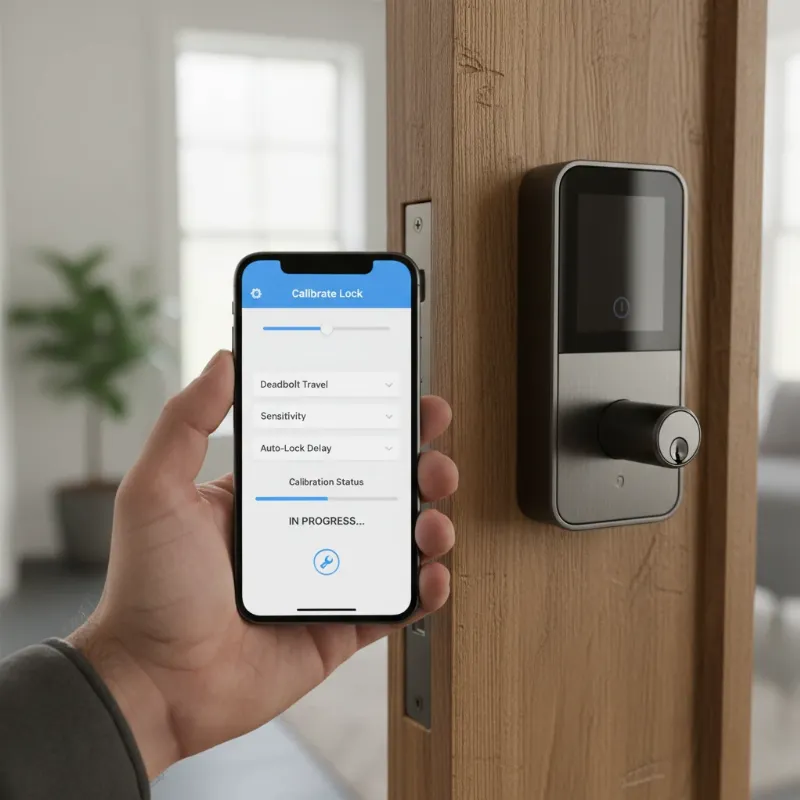 A close-up of a smart lock being calibrated on a wooden door, with a smartphone displaying calibration settings
Signs Your Smart Lock Needs Calibration
Smart locks are designed for reliability, but several indicators can suggest that your device requires recalibration. Paying attention to these signs can help you address issues before they compromise your home’s security or your convenience.
- Difficulty Locking or Unlocking: If your smart lock struggles to extend or retract the deadbolt fully, making grinding noises, or needing multiple attempts to lock/unlock, it’s a primary sign of calibration issues.
- Inconsistent Operation: The lock might work perfectly some days but fail on others, often related to minor shifts in the door or frame due to temperature or humidity.
- Error Messages: Many smart lock apps will display specific error messages like “lock jammed,” “calibration needed,” or “deadbolt not fully engaged,” directly prompting you to recalibrate.
- Increased Battery Drain: A smart lock expending more effort than necessary to lock or unlock due to misalignment will consume battery power at an accelerated rate.
- After Battery Replacement: While not always mandatory, some smart locks recommend or even require recalibration after a complete battery replacement to re-establish optimal function.
- Changes to Door or Frame: If you’ve recently adjusted your door, replaced weatherstripping, or noticed your door sagging, these physical changes can throw off the lock’s learned positions, necessitating recalibration.
Preparing for Calibration
Before you begin the calibration process, a little preparation can save you time and ensure a smoother experience. Think of it as setting the stage for perfect performance.
- Check Battery Levels: Ensure your smart lock has fresh, high-quality batteries. Low power can cause calibration failures or inaccurate readings, leading to continued issues after the process.
- Clean the Lock Mechanism: Inspect the deadbolt, strike plate, and the surrounding area for any dirt, dust, or debris. Use a soft cloth and compressed air to clean these components, as obstructions can hinder smooth operation.
- Ensure Proper Door Alignment: A door that is visibly sagging, sticking, or has a misaligned strike plate can prevent successful calibration. Make sure your door closes smoothly and the deadbolt freely slides into the strike plate opening when operated manually. If there are underlying alignment issues, address them first.
- Verify Connectivity: For app-controlled calibration, ensure your smartphone is within Bluetooth range or connected to the same Wi-Fi network as your smart lock, depending on its communication method. A stable connection is crucial for the lock to receive and process calibration commands.
- Have Manufacturer’s Instructions Handy: While this guide provides general steps, specific procedures can vary by brand. Referring to your smart lock’s manual or support website for model-specific instructions is always recommended for the most accurate process.
General Steps to Calibrate Your Smart Lock
The exact steps for calibration vary significantly between smart lock brands and models. However, most follow a similar logic, typically involving the lock learning its locked and unlocked positions. Here’s a generalized approach to help you navigate the process.
1. Calibration via Mobile App:
Most modern smart locks are integrated with a dedicated mobile application, which often serves as the primary interface for calibration.
- Open the App: Launch your smart lock’s companion app on your smartphone.
- Navigate to Device Settings: Select your specific smart lock from the list of devices. Look for “Settings,” “Device Settings,” or a similar option.
- Find Calibration Option: Within the settings, locate an option such as “Calibrate Lock,” “Recalibrate,” “Door Sense Calibration,” or “Lock Settings.”
- Follow On-Screen Prompts: The app will typically guide you through the process, often asking you to manually lock and unlock the door, or instructing the lock to cycle through its positions automatically. It may prompt you to confirm if the door is currently locked or unlocked.
- Confirm Completion: Once the lock has completed its cycle and the app confirms successful calibration, test the lock manually and through the app to ensure smooth operation.
2. Calibration via Keypad or Physical Buttons:
Some smart locks, especially those without robust app integration or in emergency scenarios, allow calibration directly from the device itself or an associated keypad.
- Access Menu (if applicable): If your lock has a keypad, you might need to press a “Menu” or “Settings” button and enter a master PIN.
- Locate Calibration Function: Use arrow keys or numerical inputs to navigate to a “Calibrate” or “Recalibrate” option.
- Initiate Cycle: The lock will then often perform a series of turns, learning its endpoints. You might be prompted to manually lock and unlock the door.
- Listen for Confirmation: The lock will usually provide an audible beep or flash an LED light to indicate successful calibration.
3. Manual Recalibration (for specific models):
In rarer cases, or for troubleshooting, some locks might require a more manual approach, such as a “battery pull” method combined with a button press.
- Remove Batteries: Take out the batteries from the interior unit of the smart lock.
- Press and Hold a Button: While holding down a specific button (often the “Program” or “Lock” button), reinsert the batteries.
- Release Button: Continue holding until the lock initiates its learning cycle, usually indicated by motor movement or an LED flash.
- Test: Once the process is complete, test the lock’s functionality.
“Smart lock calibration isn’t just a maintenance task; it’s a foundational step that solidifies the digital connection with the physical mechanics, ensuring seamless security for your home.” – Alex Chen, Smart Home Security Consultant
Remember, if you encounter persistent issues, consult your smart lock’s specific user manual or contact the manufacturer’s customer support for tailored assistance.
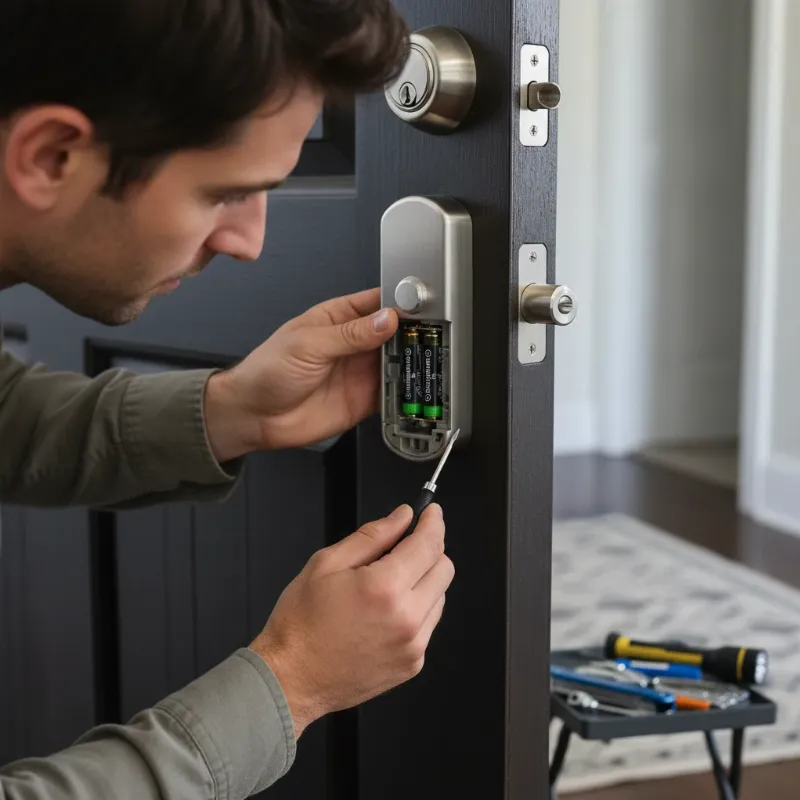 A person troubleshooting a smart lock, checking battery and door alignment
Common Issues Affecting Smart Lock Performance and How Calibration Helps
Smart locks, while advanced, can experience performance hiccups. Many common problems, if not directly solved by calibration, are significantly improved by ensuring your lock’s understanding of its physical environment is precise.
Misalignment of Deadbolt/Strike Plate
A perfectly aligned deadbolt is paramount for any lock, especially smart ones. If the deadbolt hole in your doorframe (the strike plate) doesn’t perfectly match the deadbolt on the lock, the smart lock’s motor will encounter resistance. This can lead to:
- Locking/Unlocking Failures: The deadbolt might get stuck, fail to fully extend, or retract.
- Excessive Motor Strain: The motor works harder, causing faster battery drain and premature wear.
- False Readings: The lock might report as “locked” when it’s only partially engaged, or vice versa.
|
Our Picks for the Best smart locks in 2026
As an Amazon Associate I earn from qualifying purchases.
|
||
| Num | Product | Action |
|---|---|---|
| 1 | Smart Door Lock with Camera Fingerprint Keyless Entry Door Lock Electronic Deadbolt with Keypad Code, App Remote Control, Auto Unlock for Front Door |

|
| 2 | Yale Security Assure Lock 2 Deadbolt, Black Suede Keyed Smart Entry Door Lock with Wi-Fi Connected Keypad for Code Entry and Remote Access, YRD410-WF1-BSP |
|
| 3 | ULTRALOQ U-Bolt Pro WiFi Smart Lock with Door Sensor, 8-in-1 Keyless Entry Door Lock with Fingerprint ID, App Remote Control, Built-in WiFi Keypad Deadbolt, Auto Unlock, IP65 Waterproof, Easy Install |
|
| 4 | Schlage Encode Smart WiFi Deadbolt Lock for Front Door - Keyless Entry with App or Touchscreen - Works with Alexa, Hey Google, & Airbnb - Create Codes for Guests - Satin Nickel Silver |
|
| 5 | TEEHO TE001 Keyless Entry Door Lock with Keypad - Smart Deadbolt Lock for Front Door with 2 Keys - Auto Lock - Easy Installation - Matte Black |
|
| 6 | Wyze Palm Lock, Smart Door Lock with Palm Vein Recognition, Keyless Entry Smart Locks for Front Door, Keypad, Auto Lock, Dual Battery, Wi-Fi, Works with Alexa & Google, BHMA, IP53, Mechanical Key |
|
| 7 | Schlage Encode Smart WiFi Deadbolt Lock for Front Door - Keyless Entry with App or Touchscreen - Works with Alexa, Hey Google, & Airbnb - Create Codes for Guests - Matte Black |
|
| 8 | Smart Door Handle Lock with Keypad: Yamiry Fingerprint Smart Knob - Keyless Entry Digital Lock for Front Door - Deadbolt with APP - Generate Passcode Remotely - DIY Installation |
|
| 9 | Tapo Smart Wi-Fi Deadbolt Door Lock – Keyless Tactile Buttons, Customized Access with in-App Monitoring, Auto-Lock, IP54 Weatherproof, BHMA Grade 3, Compatible with Standard Door Sizes, Tapo DL100 |
|
| 10 | Wyze Auto-Lock Bolt v2, Fingerprint Keyless Entry Smart Lock, AI Learning Scanner with Wi-Fi Front Door Lock Deadbolt, Auto-Lock, 8 Months Battery, BHMA2, IP53, Anti-Peep Keypad, Backup Keys |
|
How Calibration Helps: While calibration won’t physically fix a misaligned doorframe, it helps the smart lock learn the exact points of resistance. If minor, the lock might compensate. However, if the misalignment is severe, the lock will still struggle, indicating that mechanical adjustment of the strike plate or door hinges is necessary before effective calibration can occur.
Low Battery Power
Insufficient battery power is a leading cause of smart lock malfunctions, including calibration issues.
- Weak Motor Operation: The motor may not have enough power to complete the locking/unlocking cycle.
- Failed Calibration: Calibration processes themselves can be power-intensive, and low batteries can cause them to fail or result in inaccurate settings.
- Intermittent Connectivity: Low power often affects the lock’s ability to maintain a stable Wi-Fi or Bluetooth connection, hindering app-based calibration.
How Calibration Helps: It doesn’t, directly. Instead, fresh batteries are a prerequisite for successful calibration. If your lock exhibits problems, always replace batteries first, then attempt calibration if issues persist. Many smart locks will prompt you to replace batteries or won’t allow calibration if power is too low.
Connectivity Problems (Wi-Fi/Bluetooth)
Smart locks rely on wireless communication for remote control, status updates, and often, calibration.
- App-Based Calibration Failure: If your phone can’t communicate with the lock, you won’t be able to initiate or complete the calibration process via the app.
- Delayed Commands: Even if calibration completes, poor connectivity can lead to delays in commands, giving the impression of a malfunctioning lock.
- Firmware Update Issues: Connectivity problems can also prevent essential firmware updates, which sometimes include calibration improvements or bug fixes.
How Calibration Helps: Calibration itself doesn’t fix connectivity. However, ensuring a stable connection is crucial before you calibrate, especially for app-driven models. If calibration fails due to communication issues, troubleshoot your network or Bluetooth connection first.
Software Glitches/Firmware
Like any smart device, smart locks run on software (firmware) that can occasionally have bugs or become outdated.
- Erratic Behavior: Unexpected locking/unlocking, incorrect status reports, or unresponsive commands.
- Calibration Data Loss: A software glitch might erase or corrupt the lock’s learned calibration data.
- Inability to Initiate Calibration: A bug might prevent the calibration function from starting at all.
How Calibration Helps: Often, recalibration can help a lock “relearn” its correct operating parameters after a minor software hiccup. However, if the issue is a deeper firmware bug, a firmware update (if available) or a factory reset followed by recalibration might be necessary.
Physical Obstructions/Debris
Small particles, paint, or even minor damage can impede the deadbolt’s movement.
- Jamming: Any obstruction in the deadbolt’s path or the strike plate opening can cause it to jam.
- Grinding Sounds: The motor struggling against resistance will often produce unusual noises.
- Incomplete Lock Cycles: The deadbolt might stop halfway, failing to fully secure the door.
How Calibration Helps: Calibration attempts to learn the lock’s travel path. If there’s a constant obstruction, the calibration might repeatedly fail or result in settings that still cause the lock to struggle. It’s crucial to physically clear any obstructions before calibrating to ensure the lock learns a clear path.
The Evolution of Smart Locks
Smart lock technology has come a long way, evolving from simple keypad entry systems to sophisticated, interconnected devices. Understanding these advancements helps appreciate the current landscape and future possibilities.
Smart Locks: A Comprehensive Overview
What exactly defines a smart lock? At its core, a smart lock is an electromechanical lock designed to perform locking and unlocking operations on a door when it receives instructions from an authorized device using a wireless protocol and a cryptographic key to execute the authorization process. They integrate with your smart home ecosystem, offering convenience and enhanced security.
Common Types of Smart Locks on the Market
The diversity of smart lock options caters to various preferences and security needs. Here are some of the most popular types you’ll encounter:
- Fingerprint Locks: These locks use biometric scanners to read fingerprints, offering quick and keyless entry. They are highly secure as fingerprints are unique to each individual.
- Card Locks: Often found in offices and hotels, these locks use RFID or NFC cards for access. They are convenient for managing multiple users.
- Keypad Locks: Requiring a numerical code for entry, keypad locks are a widely adopted solution, balancing security with the simplicity of remembering a PIN.
- Facial Recognition Locks: Representing the cutting edge, these locks use camera technology to recognize authorized faces, providing a hands-free and highly secure access method.
- Remote Control Locks (Bluetooth, Wi-Fi): These locks can be controlled via a smartphone app, utilizing Bluetooth for proximity-based control or Wi-Fi for remote access from anywhere with an internet connection.
Each type offers distinct advantages and caters to different security and convenience priorities.
| Feature | Fingerprint Lock | Card Lock | Keypad Lock | Facial Recognition Lock | Remote Control Lock |
|---|---|---|---|---|---|
| Security Level | High | Medium | Medium | Very High | High |
| Convenience | High | Medium | High | High | High |
| Cost | Medium | Low | Low | High | Medium |
| Suitability | Family, Office | Office, Hotel | Family, Office | High-End Homes, Apartments | Family, Rental Properties |
Guide to Choosing the Right Smart Lock
Selecting a smart lock involves more than just picking a design; it’s about matching technology to your lifestyle and security requirements.
- Determine Your Needs: Consider your door type (material, thickness), desired level of security (e.g., Grade 1 vs. Grade 2 ANSI rating), and budget. How many people will need access? Do you need remote capabilities?
- Research Reputable Brands: Brands like Philips, Yale, Samsung, Schlage, August, and Wyze are well-regarded in the smart lock industry for their reliability and range of features. Look into their product lines to find options that align with your needs.
- Compare Features and Specifications: Look at connection types (Bluetooth, Wi-Fi, Z-Wave, Zigbee), battery life, integration with existing smart home systems (Alexa, Google Home, Apple HomeKit), and specific security features (e.g., anti-peep codes, auto-lock).
- Read User and Expert Reviews: Real-world experiences can highlight practical pros and cons not always evident in product descriptions. Expert reviews can offer insights into technical performance and ease of use.
- Check Warranty and Support: A robust warranty and responsive technical support are crucial for any smart home device. Ensure the manufacturer stands behind its products and offers clear assistance channels.
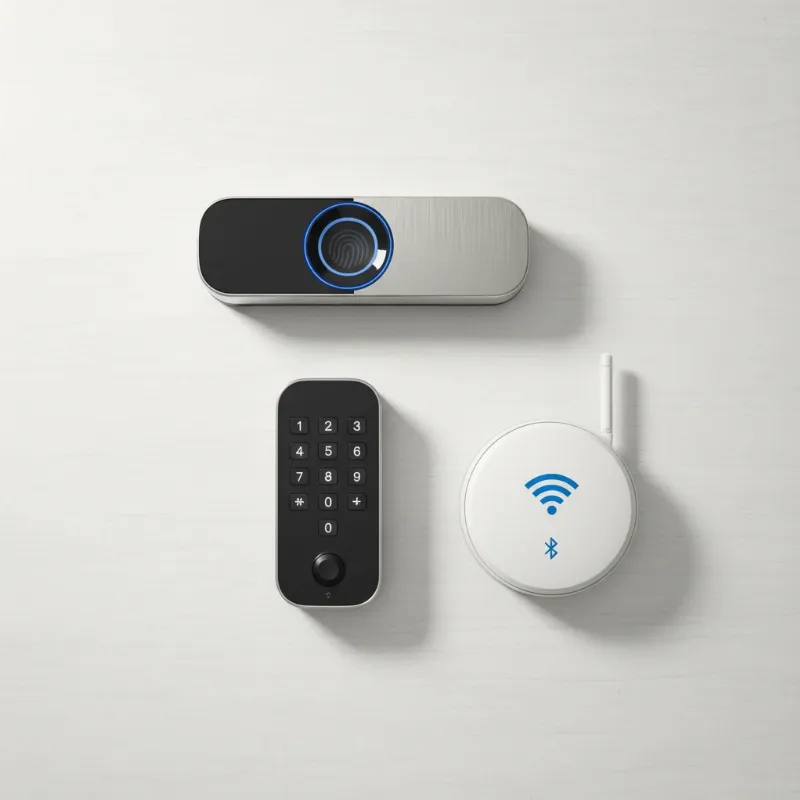 Various types of smart locks including fingerprint, keypad, and remote control
Tips for Using and Maintaining Smart Locks Correctly
Proper usage and regular maintenance are key to maximizing your smart lock’s lifespan and ensuring its flawless operation.
- Replace Batteries Regularly: Smart locks depend heavily on battery power. Replace batteries every 6-12 months, or sooner if indicated by low battery warnings. Consider using high-quality lithium batteries for longer life.
- Regular Cleaning: Dust, grime, and environmental factors can affect performance. Clean the exterior of your smart lock with a soft, damp cloth. For keypads and fingerprint sensors, use a dry, lint-free cloth. Avoid harsh chemicals or abrasive materials.
- Software and Firmware Updates: Keep your smart lock’s app and firmware updated. Manufacturers frequently release updates that improve security, add features, and fix bugs that could affect calibration or overall performance.
- Do Not Share Access Codes Carelessly: Treat your smart lock access codes with the same discretion as physical keys. Only share them with trusted individuals and change them periodically, especially after guests or temporary residents depart.
- Address Issues Promptly: If you notice any signs of malfunction—whether it’s sticking, slow response, or error messages—address them immediately. Don’t wait for a minor issue to escalate into a lockout situation. Contact customer support if you cannot resolve the problem yourself.
Common Smart Lock Errors and Troubleshooting
Even with careful maintenance, smart locks can sometimes encounter issues. Here are a few common problems and general troubleshooting steps.
Lock Not Recognizing Fingerprint/Card/Code
- Issue: The lock fails to unlock after repeated attempts with a registered fingerprint, card, or code.
- Troubleshooting:
- Fingerprint: Ensure your finger is clean, dry, and placed correctly on the sensor. Re-register your fingerprint if needed.
- Card: Check if the card is damaged or if there’s interference. Try another registered card.
- Code: Double-check the code for accuracy. Ensure the keypad is clean and responsive.
- Battery: Low batteries can affect sensor and keypad sensitivity. Replace them.
Lock Runs Out of Battery
- Issue: The smart lock becomes unresponsive due to depleted batteries.
- Troubleshooting:
- Emergency Key: Most smart locks include a physical key override. Use it to gain entry.
- External Power: Some locks have terminals for a 9V battery or a USB power bank to provide temporary power for unlocking.
- Replace Batteries: Immediately replace the internal batteries with fresh ones to restore full functionality.
Lock is Jammed or Stuck
- Issue: The deadbolt doesn’t extend or retract smoothly, or the lock makes grinding noises.
- Troubleshooting:
- Physical Obstruction: Check for anything physically blocking the deadbolt or within the strike plate. Clean out any debris.
- Door Alignment: Inspect your door for sagging or misalignment. If the door isn’t properly aligned with the frame, the deadbolt won’t engage smoothly.
- Lubrication: Apply a silicone-based lubricant to the deadbolt mechanism (avoid oil-based lubricants).
- Recalibrate: After addressing any physical issues, recalibrate the lock to re-teach it the correct travel path.
Lock Hacked or Compromised
- Issue: Unauthorized access, suspicious activity logs, or loss of control over the lock.
- Troubleshooting:
- Change Passwords: Immediately change all associated app passwords and smart lock PINs.
- Factory Reset: Perform a factory reset on the smart lock to erase all data and reset to default settings. Reconfigure it from scratch with strong, new credentials.
- Update Firmware: Ensure the lock’s firmware is up to date, as updates often include security patches.
- Two-Factor Authentication (2FA): Enable 2FA on your smart lock app and smart home platforms for an added layer of security.
- Contact Manufacturer: Report the incident to the manufacturer for guidance and potential solutions.
Future Trends in Smart Locks
The landscape of smart lock technology is continually evolving, promising even greater security, integration, and user convenience in the years to come.
- Integration with Artificial Intelligence (AI): AI will enable smart locks to learn user behavior, predict access needs, and proactively identify unusual patterns that might indicate a security threat. Imagine a lock that learns your schedule and can intelligently adjust its settings.
- Enhanced Smart Home Connectivity: Future smart locks will offer even more seamless integration with broader smart home ecosystems, becoming central components in home automation routines. They will communicate effortlessly with lighting, thermostats, security cameras, and voice assistants, creating truly unified smart living experiences.
- Blockchain Technology for Security: The immutable and decentralized nature of blockchain could be leveraged to create tamper-proof audit trails for access events and secure management of digital keys, significantly enhancing the trustworthiness and integrity of smart lock operations.
- Advanced Biometrics and User Authentication: Beyond fingerprints and facial recognition, expect more sophisticated biometric methods like iris scanning or even gait analysis. Multimodal authentication, combining several methods for unparalleled security, will also become more common.
- Voice and Gesture Control: The ability to lock or unlock doors using natural language commands or intuitive gestures will become more refined, offering hands-free convenience that feels futuristic yet practical.
These advancements underscore a future where smart locks are not just security devices but intelligent guardians seamlessly woven into the fabric of our connected homes.
Conclusion
Calibrating your smart lock is not just a technicality; it’s a critical practice that ensures your home security system performs flawlessly, offering consistent reliability and convenience. By understanding what calibration entails, recognizing the signs it’s needed, and following proper procedures, you empower yourself to maintain perfect locking operation. From replacing batteries to addressing physical misalignments, each step contributes to a smart lock that works exactly as it should, every single time.
Embrace the future of home security by keeping your smart locks perfectly calibrated and well-maintained. A properly functioning smart lock isn’t just about convenience; it’s about the unwavering assurance that your home and loved ones are safe. Don’t let a simple oversight compromise your peace of mind. Regular attention to your smart lock’s calibration will yield years of trouble-free performance.
Ready to optimize your home security? Take control of your smart lock’s performance today!
Frequently Asked Questions
Is smart lock calibration necessary after installation?
Yes, it is highly recommended to calibrate your smart lock after initial installation, and often it’s a mandatory step in the setup process. Calibration teaches the lock the specific dimensions and movements required for your door, ensuring the deadbolt extends and retracts perfectly within its unique frame, optimizing performance and battery life.
How often should I calibrate my smart lock?
The frequency of calibration varies by manufacturer and usage, but generally, recalibrating every 6-12 months is a good practice, or whenever you notice inconsistent locking, error messages, or after changing batteries or making adjustments to your door. Routine recalibration helps maintain optimal alignment and functionality.
Can a misaligned door cause smart lock issues?
Absolutely. A misaligned door or strike plate is a common cause of smart lock problems. If the deadbolt cannot smoothly enter and exit the strike plate hole, the lock’s motor will struggle, leading to incomplete locking, jamming, excessive battery drain, and potential long-term damage. Calibration can help with minor misalignments, but significant issues require physical door or frame adjustments first.
What if my smart lock fails to calibrate?
If your smart lock fails to calibrate, first ensure you have fresh batteries and that there are no physical obstructions or significant misalignments with your door and frame. Check your Wi-Fi or Bluetooth connection if calibrating via an app. If problems persist, try restarting the lock or performing a factory reset, then attempting calibration again. If all else fails, consult your manufacturer’s support.
Does calibrating a smart lock improve its battery life?
Yes, indirectly. Proper calibration allows the smart lock’s motor to operate efficiently, applying just the right amount of force for locking and unlocking. When a lock is poorly calibrated or misaligned, its motor has to work harder and longer, leading to increased power consumption and a shorter battery lifespan.
Can I calibrate my smart lock manually without an app?
Some older or simpler smart lock models may offer a manual calibration method, often involving a sequence of button presses on the lock itself or an associated keypad. However, most modern smart locks primarily rely on their companion mobile app for an intuitive, guided calibration process, providing more precise feedback and control.