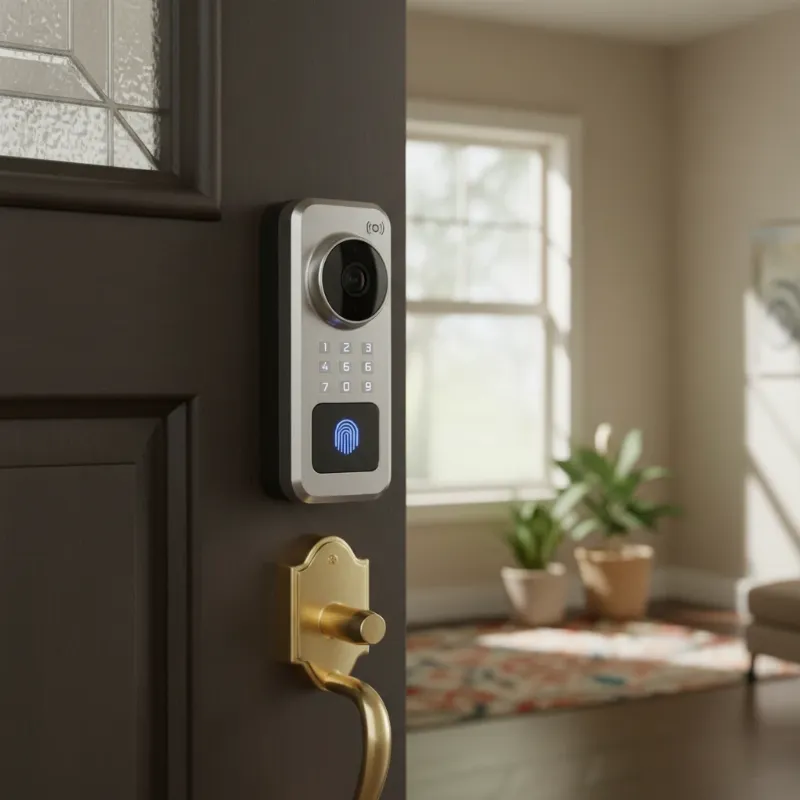
Waking up to a smart lock code that refuses to work can turn a convenient start to your day into a frustrating lockout situation. Modern smart locks offer unparalleled security and ease, but like any sophisticated technology, they can sometimes encounter glitches. Understanding the common reasons behind a non-responsive code and knowing the systematic troubleshooting steps can save you time, stress, and the inconvenience of being locked out of your home.
This comprehensive guide will walk you through everything you need to know when your smart lock code stops working, from simple checks to advanced resets and preventative measures. Let’s unlock the solutions together.
Understanding Your Smart Lock and Its Code
Smart locks revolutionize home security by providing keyless entry, remote access, and integration with smart home ecosystems. At their core, these devices rely on digital codes—combinations of numbers or letters—to grant or restrict access. Typically, there are various types of codes, including a primary “master” code for full control, “user” codes for family members or regular guests, and often “temporary” codes for one-time access or specific timeframes.
These codes are usually programmed through the lock’s physical keypad, a dedicated smartphone app, or a connected smart home hub. When you enter a code, the lock’s internal system verifies it against its stored data, and if a match is found, the locking mechanism engages or disengages. The convenience is undeniable, but when this seamless process falters, it can be perplexing.
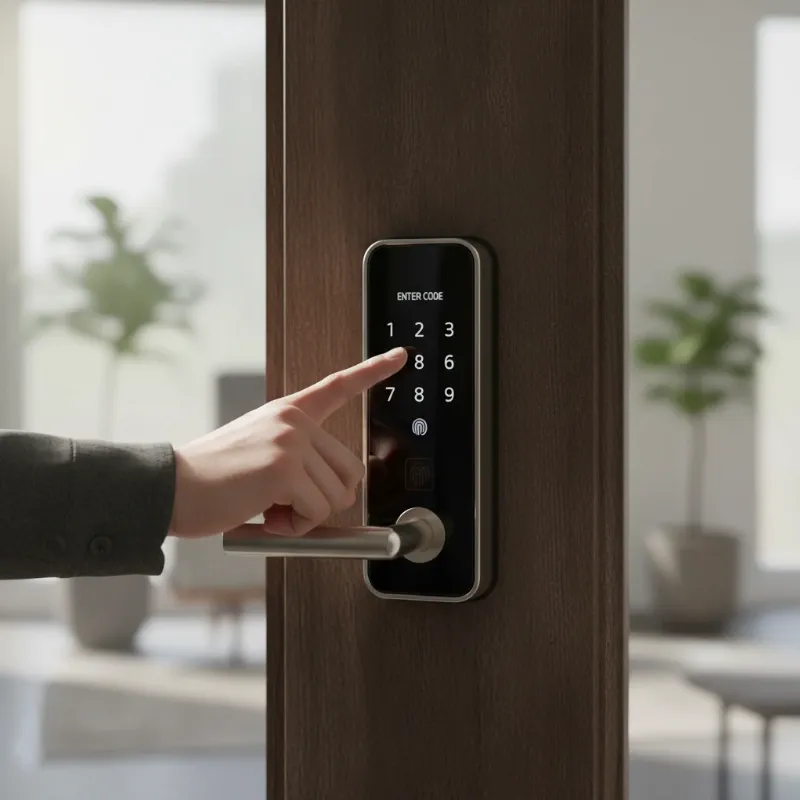 A person's hand entering a code on a modern smart lock keypad installed on a residential door.
Initial Troubleshooting: Simple Checks for a Non-Responsive Code
Before diving into complex solutions, it’s always best to start with the most common and easiest fixes. Many smart lock issues stem from minor oversights or basic hardware problems. Take a deep breath and systematically go through these initial steps.
Double-Check the Code
|
Our Picks for the Best smart locks in 2026
As an Amazon Associate I earn from qualifying purchases.
|
||
| Num | Product | Action |
|---|---|---|
| 1 | Smart Door Handle Lock with Keypad: Yamiry Fingerprint Smart Knob - Keyless Entry Digital Lock for Front Door - Deadbolt with APP - Generate Passcode Remotely - DIY Installation |

|
| 2 | TEEHO TE001 Keyless Entry Door Lock with Keypad - Smart Deadbolt Lock for Front Door with 2 Keys - Auto Lock - Easy Installation - Matte Black |
|
| 3 | Tapo Smart Wi-Fi Deadbolt Door Lock – Keyless Tactile Buttons, Customized Access with in-App Monitoring, Auto-Lock, IP54 Weatherproof, BHMA Grade 3, Compatible with Standard Door Sizes, Tapo DL100 |
|
| 4 | Yale Security Assure Lock 2 Deadbolt, Black Suede Keyed Smart Entry Door Lock with Wi-Fi Connected Keypad for Code Entry and Remote Access, YRD410-WF1-BSP |
|
| 5 | ULTRALOQ U-Bolt Pro WiFi Smart Lock with Door Sensor, 8-in-1 Keyless Entry Door Lock with Fingerprint ID, App Remote Control, Built-in WiFi Keypad Deadbolt, Auto Unlock, IP65 Waterproof, Easy Install |
|
| 6 | Wyze Palm Lock, Smart Door Lock with Palm Vein Recognition, Keyless Entry Smart Locks for Front Door, Keypad, Auto Lock, Dual Battery, Wi-Fi, Works with Alexa & Google, BHMA, IP53, Mechanical Key |
|
| 7 | Wyze Auto-Lock Bolt v2, Fingerprint Keyless Entry Smart Lock, AI Learning Scanner with Wi-Fi Front Door Lock Deadbolt, Auto-Lock, 8 Months Battery, BHMA2, IP53, Anti-Peep Keypad, Backup Keys |
|
| 8 | Schlage Encode Smart WiFi Deadbolt Lock for Front Door - Keyless Entry with App or Touchscreen - Works with Alexa, Hey Google, & Airbnb - Create Codes for Guests - Matte Black |
|
| 9 | Schlage Encode Smart WiFi Deadbolt Lock for Front Door - Keyless Entry with App or Touchscreen - Works with Alexa, Hey Google, & Airbnb - Create Codes for Guests - Satin Nickel Silver |
|
| 10 | Smart Door Lock with Camera Fingerprint Keyless Entry Door Lock Electronic Deadbolt with Keypad Code, App Remote Control, Auto Unlock for Front Door |
|
It might sound obvious, but human error is a frequent culprit. Carefully re-enter your code, ensuring each digit is correct and pressed in the precise sequence. Verify that you haven’t accidentally switched user codes, especially if multiple people use different access codes. Also, confirm that you’re using the correct number of digits as per your lock’s programming.
Inspect the Keypad
The keypad is your primary interface with the smart lock, and environmental factors can affect its performance. Look closely for any visible dirt, grime, or debris that might be obstructing the buttons or touch sensors. A quick wipe with a soft, dry cloth can often clear away these minor impediments. Check for any physical damage, such as stuck or unresponsive buttons, which could indicate a hardware issue.
Check Battery Levels
Low or dead batteries are arguably the most common reason for a smart lock keypad to stop responding. Most smart locks provide a low battery warning, but these can sometimes be missed or appear too late. If your lock’s keypad is dim, unresponsive, or behaving erratically, try replacing the batteries immediately. For optimal performance, always use high-quality alkaline batteries, as some smart locks do not function well with rechargeable types.
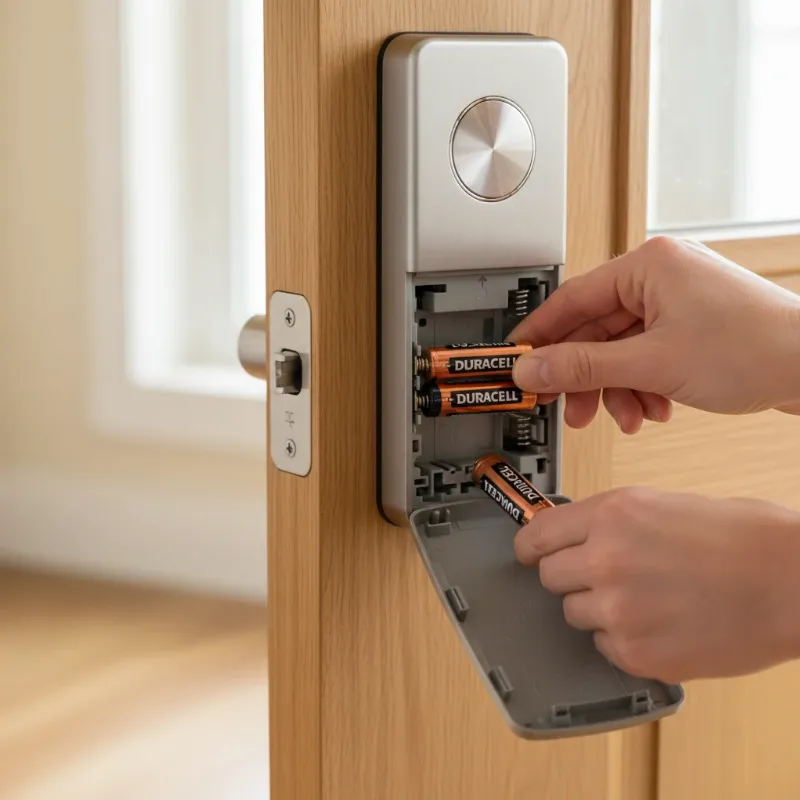 Hands replacing AA batteries in the open battery compartment of a smart door lock.
Look for Lockout Modes
Many smart locks come with security features designed to prevent unauthorized access, such as “Vacation Mode” or temporary lockout protocols. If too many incorrect codes are entered consecutively, the lock might temporarily disable the keypad as a security measure. Check your smart lock’s companion app or user manual to see if a lockout mode is active or if the lock has temporarily deactivated the keypad. Some locks automatically reactivate after a cool-down period.
Verify Door Alignment
A smart lock’s internal mechanism needs to align perfectly with the door frame’s strike plate to function smoothly. If your door has shifted slightly due to changes in humidity, temperature, or foundation settling, the deadbolt might jam, preventing the lock from engaging or disengaging properly, even with a correct code. Open the door and test the lock’s function while it’s ajar. If it works fine when open but not when closed, adjusting the strike plate might resolve the issue.
Advanced Troubleshooting Steps for Persistent Code Issues
If the initial checks don’t resolve your problem, it’s time to delve into more advanced troubleshooting. These steps often involve the lock’s internal electronics, software, or connectivity.
Power Cycle the Smart Lock
Just like restarting a computer or smartphone, a simple power cycle can often resolve temporary software glitches or communication errors within your smart lock. To perform a soft reset, remove one or all batteries from the lock, wait for about 10-30 seconds, and then reinsert them. This reboots the device and can clear up minor internal conflicts. After reinserting the batteries, try your code again.
Evaluate Connectivity
For smart locks connected via Wi-Fi or Bluetooth, connectivity issues can prevent codes from syncing or the lock from responding to commands. Ensure your smartphone is within Bluetooth range if it’s a Bluetooth-only lock. If your lock uses Wi-Fi, check your router’s status and signal strength. Try restarting your Wi-Fi router or smart home hub, and then reconnect your smart lock to the network. Thick walls or other electronic devices can sometimes interfere with wireless signals, so consider repositioning your router or lock if interference is suspected.
Update Firmware and App
Outdated software is a common cause of unexpected behavior in smart devices. Manufacturers regularly release firmware updates for smart locks to improve performance, add features, and fix bugs. Similarly, ensure your smart lock’s companion app on your smartphone is updated to its latest version. Access your lock’s app settings to check for available firmware updates and install them. Regular updates can prevent many code-related issues.
Recalibrate Keypad/Sensors
Some advanced smart locks, particularly those with fingerprint sensors or more intricate keypads, may benefit from recalibration if they become unresponsive. This process is usually initiated through the smart lock’s app settings and helps the device re-learn its proper functioning parameters. Consult your lock’s user manual or app for specific instructions on how to recalibrate its components.
Check User Permissions and Code Expiration
If you’re using user-specific or temporary codes, verify their status within your smart lock’s app. Ensure the code hasn’t expired, been deleted, or had its access permissions revoked. Sometimes, scheduled access times can prevent a code from working outside designated hours, so double-check those settings if applicable.
Resetting Your Smart Lock Code: When and How
If all troubleshooting efforts fail, or if you’ve forgotten your master code, a reset might be necessary. There are generally two types of resets: resetting individual user codes and performing a factory reset.
Resetting Individual User Codes
If only one specific user code is not working, and other codes function correctly, you can often delete and re-add that individual code through your smart lock’s app or by using the master code on the keypad. This process is usually straightforward and doesn’t affect other settings or codes.
Performing a Factory Reset
A factory reset is a more drastic step, as it erases all stored data, including all user codes, fingerprints, and connected device settings, returning the lock to its original factory defaults. This means you will need to re-pair the lock with your smartphone or hub and reprogram all codes from scratch. It is advisable to have alternative access to your home (e.g., a traditional key or another entry point) before performing a factory reset to avoid being locked out.
The exact steps for a factory reset vary by manufacturer and model, but typically involve:
- Locate the Reset Button: This small button is often hidden inside the battery compartment or behind a removable panel on the interior side of the lock. You may need a paperclip or a similar blunt object to press it.
- Press and Hold: With the batteries in place, press and hold the reset button for a specific duration, usually 5 to 30 seconds. The lock’s LED indicator lights will often flash to confirm the reset process has begun or completed.
- Enter a Reset Code (if applicable): Some models might require you to enter a specific factory reset code (e.g., “000#” or “#0”) on the keypad after pressing the button.
- Reconfigure: Once the reset is complete, the lock will be in its “out-of-the-box” state. You’ll then need to follow the manufacturer’s instructions to re-pair it with your app/hub, set up new master codes, and add any user codes.
Always refer to your smart lock’s user manual for precise, model-specific instructions on how to perform a factory reset.
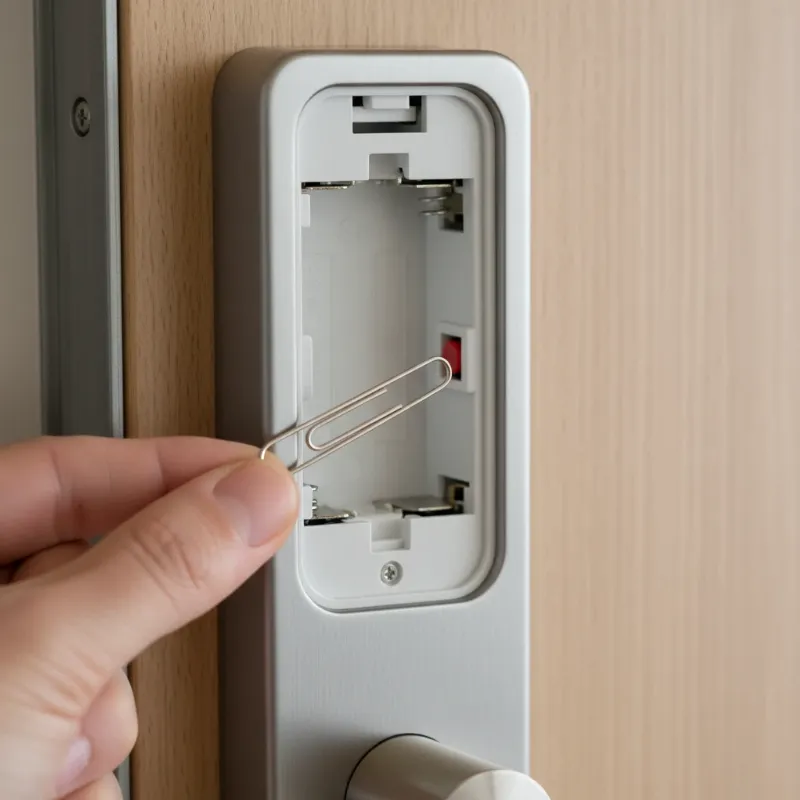 A small reset button being pressed with a paperclip on the interior unit of a smart lock.
Seeking Professional Help for Your Smart Lock
There are instances when despite your best troubleshooting efforts, your smart lock code continues to be problematic. This is when professional assistance becomes invaluable.
When to Contact Manufacturer Support or a Locksmith
If you’ve meticulously followed all the troubleshooting steps, including a factory reset, and your smart lock code still isn’t working, it’s time to reach out for expert help. The issue could be a more complex internal hardware failure, a manufacturing defect, or an incompatibility that requires specialized tools or knowledge. Your lock’s manufacturer support can provide model-specific guidance, arrange for repairs, or discuss warranty replacements. Alternatively, a certified locksmith specializing in smart locks can diagnose and fix mechanical issues or help with advanced programming challenges.
Preparing for Support
To expedite the support process, have the following information ready:
- Smart Lock Model and Serial Number: This helps technicians quickly identify your device.
- Troubleshooting Steps Taken: Clearly list all the actions you’ve performed, including battery checks, resets, and updates.
- Description of the Problem: Detail when the issue started, any specific error messages, and how the lock is currently behaving.
- Purchase Date and Warranty Information: This is crucial for determining eligibility for repairs or replacements under warranty.
Preventing Future Smart Lock Code Problems
Proactive maintenance and secure practices can significantly reduce the likelihood of your smart lock code failing in the future. Integrating these habits into your routine will ensure reliable security and convenient access.
Establish a Routine for Battery Replacement
Since low batteries are a leading cause of smart lock malfunctions, make it a habit to replace them regularly. Most manufacturers recommend changing batteries every 6-12 months, regardless of whether a low battery warning has appeared. Consider setting a recurring reminder on your calendar or phone.
Regularly Update Firmware and App
Enable automatic updates for your smart lock’s firmware and its companion app whenever possible. These updates often include critical bug fixes, security patches, and performance enhancements that keep your lock operating smoothly.
Securely Manage and Store Codes
Avoid sharing your master code with anyone, and assign unique user codes to each individual who needs access. Change temporary codes after their intended use, and consider updating permanent user codes periodically for enhanced security. Never write down codes in easily accessible places.
Conduct Periodic Lock Function Tests
Occasionally test all your smart lock’s functionalities, including various user codes, app control, and manual operation. This helps you identify potential issues early, before they become urgent problems, giving you ample time to troubleshoot.
“A smart lock is not just a device; it’s a critical component of your home’s security ecosystem. Regular maintenance and attentive troubleshooting are key to ensuring its reliability.”
Conclusion
A non-responsive smart lock code can be a significant inconvenience, but with a methodical approach to troubleshooting, most issues are resolvable. By starting with basic checks like battery levels and keypad cleanliness, then progressing to advanced steps like power cycling and software updates, you can often restore your lock’s functionality. When all else fails, a factory reset or professional help provides the ultimate solution.
Embracing preventative measures, such as routine battery replacements, regular software updates, and secure code management, will ensure your smart locks continue to provide the seamless convenience and enhanced security you rely on. Don’t let a temporary glitch undermine your confidence in smart home technology.
Are you ready to optimize your smart lock experience and ensure uninterrupted access to your home?
Frequently Asked Questions
Is a smart lock code more secure than a traditional key?
Smart lock codes can be highly secure, offering features like encryption, temporary codes, and audit trails that traditional keys lack. However, their security also depends on user practices, such as choosing strong, unique codes and keeping software updated.
How often should I change my smart lock batteries?
It is generally recommended to change your smart lock’s batteries every 6 to 12 months, even if they haven’t run out. This proactive approach helps prevent unexpected lockouts due to power failure and ensures optimal performance.
Can cold weather affect my smart lock’s keypad?
Yes, extreme cold can affect the performance of some smart lock keypads and internal mechanisms, leading to reduced battery life or slower responsiveness. Ensure your lock is rated for your climate and consider insulated housing if living in very cold regions.
What if I forget my master code and can’t reset it via the app?
If you forget your master code and cannot access the app or perform a soft reset, a factory reset is usually the next step. This will clear all existing codes, allowing you to set a new master code. Always consult your specific lock’s manual for precise factory reset instructions.
How do I know if my smart lock needs a firmware update?
Most smart locks will notify you through their companion app when a firmware update is available. You can also manually check for updates within the app’s settings. Keeping the firmware current is crucial for security and optimal performance.