Stepping up to your door, ready for the seamless convenience of Apple HomeKey, only to be met with a frustrating “No Response” can instantly turn smart living into a headache. Apple HomeKey transforms your iPhone or Apple Watch into a digital house key, offering unparalleled ease and security. When this innovative feature stops working, it disrupts your daily routine and raises concerns about your home’s accessibility. This comprehensive guide will walk you through common issues and provide detailed troubleshooting steps to get your HomeKey back on track, ensuring your smart lock operates smoothly and reliably.
Understanding Apple HomeKey and Its Core Components
Apple HomeKey is a groundbreaking feature that allows you to unlock compatible smart locks using your iPhone or Apple Watch, leveraging Near Field Communication (NFC) or Ultra Wideband (UWB) technology. It integrates deeply with Apple’s HomeKit ecosystem, enabling secure and convenient access to your home. At its core, HomeKey relies on a few critical components working in harmony: your iPhone or Apple Watch, a HomeKey-compatible smart lock, the Apple Home app for management, and an Apple Home Hub (such as a HomePod, HomePod mini, or Apple TV) for remote access and automation stability. A robust and stable HomeKit environment is paramount for consistent HomeKey performance.
Initial Checks: The First Steps When HomeKey Fails
When your Apple HomeKey decides to take an unexpected break, a few quick checks can often resolve the issue without delving into complex solutions. Start by restarting the Home app on your iPhone or Apple Watch, as this can clear temporary software glitches. Next, confirm that your iPhone or Apple Watch has a stable Wi-Fi connection and that Bluetooth is enabled, as both are crucial for HomeKey functionality and communication with your smart lock. Don’t forget to check the battery levels of your smart lock and your Apple devices, as low power can prevent proper operation. Finally, ensure all your devices—your iPhone, Apple Watch, and especially your smart lock—are running the latest software and firmware updates.
Common Causes for HomeKey Unresponsiveness
Several factors can lead to your HomeKey becoming unresponsive, ranging from simple connectivity issues to more intricate software conflicts. Often, the culprit lies within your home network, such as an unstable Wi-Fi signal or router configuration problems, preventing your devices from communicating effectively. Your Apple Home Hub, the central brain of your HomeKit setup, can also experience glitches that disrupt HomeKey operation. Smart lock firmware issues or a loss of direct connection to your HomeKit ecosystem are frequent causes. Furthermore, recent iOS or watchOS updates, or even an update to the HomeKit architecture itself, can sometimes introduce temporary bugs. Incorrect settings within your Apple Wallet or for Express Mode can also prevent HomeKey from functioning as expected, as can physical interference or simply not tapping your device correctly to the lock.
Step-by-Step Troubleshooting Solutions
When your Apple HomeKey isn’t responding, a systematic approach to troubleshooting is your best strategy. Here are the steps to diagnose and resolve the most common issues.
1. Basic Restarts and Rechecks
Many HomeKey problems can be resolved with simple restarts and verification steps. Begin by giving your primary devices a fresh start:
- Restart Your iPhone/Apple Watch: A quick restart of your iPhone or Apple Watch can often clear minor software hang-ups affecting HomeKey. Turn off your device, wait a few seconds, then power it back on.
- Restart the Home App: Close the Home app completely by swiping it away from your app switcher, then reopen it. This action refreshes the app’s connection to your HomeKit accessories.
- Check Network Connection: Ensure your iPhone or Apple Watch is connected to the same Wi-Fi network as your HomeKit accessories. A strong, stable Wi-Fi signal is essential for reliable communication within your smart home.
- Verify Bluetooth: Bluetooth must be enabled on your iPhone or Apple Watch, as it’s used for initial setup, proximity detection, and some direct lock communications.
|
Our Picks for the Best smart locks in 2026
As an Amazon Associate I earn from qualifying purchases.
|
||
| Num | Product | Action |
|---|---|---|
| 1 | Schlage Encode Smart WiFi Deadbolt Lock for Front Door - Keyless Entry with App or Touchscreen - Works with Alexa, Hey Google, & Airbnb - Create Codes for Guests - Matte Black |

|
| 2 | Schlage Encode Smart WiFi Deadbolt Lock for Front Door - Keyless Entry with App or Touchscreen - Works with Alexa, Hey Google, & Airbnb - Create Codes for Guests - Satin Nickel Silver |
|
| 3 | Smart Door Lock with Camera Fingerprint Keyless Entry Door Lock Electronic Deadbolt with Keypad Code, App Remote Control, Auto Unlock for Front Door |
|
| 4 | Wyze Palm Lock, Smart Door Lock with Palm Vein Recognition, Keyless Entry Smart Locks for Front Door, Keypad, Auto Lock, Dual Battery, Wi-Fi, Works with Alexa & Google, BHMA, IP53, Mechanical Key |
|
| 5 | TEEHO TE001 Keyless Entry Door Lock with Keypad - Smart Deadbolt Lock for Front Door with 2 Keys - Auto Lock - Easy Installation - Matte Black |
|
| 6 | Yale Security Assure Lock 2 Deadbolt, Black Suede Keyed Smart Entry Door Lock with Wi-Fi Connected Keypad for Code Entry and Remote Access, YRD410-WF1-BSP |
|
| 7 | ULTRALOQ U-Bolt Pro WiFi Smart Lock with Door Sensor, 8-in-1 Keyless Entry Door Lock with Fingerprint ID, App Remote Control, Built-in WiFi Keypad Deadbolt, Auto Unlock, IP65 Waterproof, Easy Install |
|
| 8 | Smart Door Handle Lock with Keypad: Yamiry Fingerprint Smart Knob - Keyless Entry Digital Lock for Front Door - Deadbolt with APP - Generate Passcode Remotely - DIY Installation |
|
| 9 | Tapo Smart Wi-Fi Deadbolt Door Lock – Keyless Tactile Buttons, Customized Access with in-App Monitoring, Auto-Lock, IP54 Weatherproof, BHMA Grade 3, Compatible with Standard Door Sizes, Tapo DL100 |
|
| 10 | Wyze Auto-Lock Bolt v2, Fingerprint Keyless Entry Smart Lock, AI Learning Scanner with Wi-Fi Front Door Lock Deadbolt, Auto-Lock, 8 Months Battery, BHMA2, IP53, Anti-Peep Keypad, Backup Keys |
|
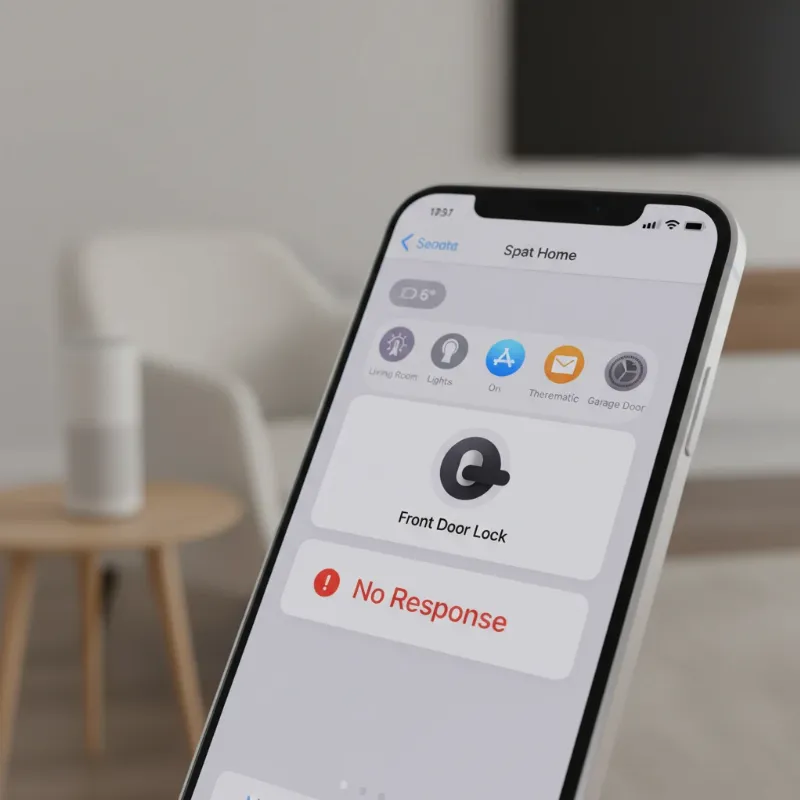 A close-up of an iPhone displaying the Apple Home app with a "No Response" message for a smart lock, emphasizing the troubleshooting context
2. Focus on Your Smart Lock
If basic device restarts don’t help, the issue might be with the smart lock itself.
- Power Cycle the Lock: Temporarily remove the batteries from your smart lock, wait for about 30 seconds, then reinsert them. This hard reset can resolve internal lock glitches.
- Check Lock Firmware: Access the manufacturer’s dedicated app for your smart lock. Verify that the lock’s firmware is up to date, as outdated firmware can cause compatibility or performance issues.
- Test with Manufacturer’s App: Try locking and unlocking your door directly through the smart lock’s native app. If it works there but not in the Apple Home app, the problem likely lies within your HomeKit setup. If it fails in both, the lock itself may be the issue.
3. Addressing Your Apple Home Hub
Your Apple Home Hub (HomePod, HomePod mini, or Apple TV) plays a crucial role in your HomeKit ecosystem, especially for remote access and overall system stability.
- Restart Your Home Hub: Unplug your Home Hub from power, wait for a minute, and then plug it back in. This often resolves connectivity issues that affect HomeKit accessories, including HomeKey.
- Restart Router and Modem: As a more comprehensive network reset, unplug your internet modem and Wi-Fi router for a minute before plugging them back in. This ensures your entire home network is refreshed, eliminating potential network-wide disruptions.
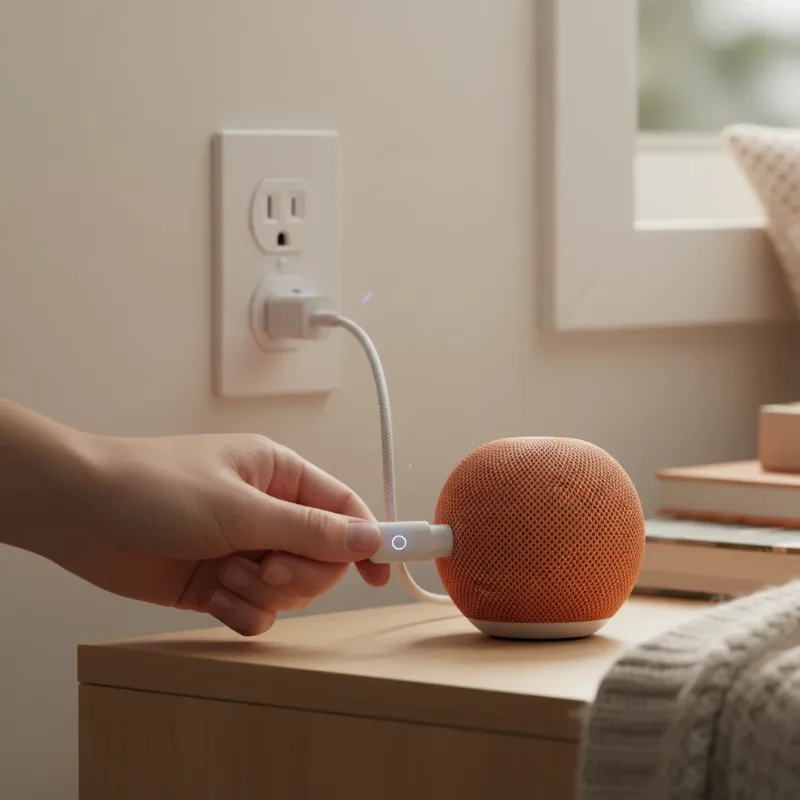 An illustration of a HomePod mini being unplugged and replugged, symbolizing restarting the Apple Home Hub for HomeKey troubleshooting
4. Advanced Troubleshooting: When All Else Fails
If the simpler steps haven’t restored your HomeKey’s functionality, it’s time to explore more advanced solutions. These methods involve deeper system interaction and should be approached carefully.
- Review Wallet & Express Mode Settings: For HomeKey to work seamlessly, ensure it’s properly configured in your Apple Wallet. Go to Settings > Wallet & Apple Pay, tap on your HomeKey, and make sure Express Mode is enabled under “Access Keys.” If it’s off, you might need to authenticate with Face ID or Touch ID every time, or it might not work at all.
- Remove and Re-add HomeKey: This step is more involved but often effective. In the Home app, go to your lock’s settings, scroll down, and select “Remove Accessory.” After removal, follow the manufacturer’s instructions to reset the lock and re-add it to the Home app. Note that this might require reconfiguring any scenes or automations associated with the lock.
- Factory Reset the Smart Lock: As a last resort, if all other methods fail, you might consider performing a factory reset on the smart lock itself. This will revert the lock to its original settings, requiring a complete re-setup. Consult your lock’s manual for specific instructions, and be prepared to re-establish all HomeKit configurations and shared access.
- Consider HomeKit Architecture Updates: Occasionally, major HomeKit architecture updates can introduce temporary glitches, particularly affecting shared HomeKeys for family members. If problems began after such an update, ensuring all devices are updated to the very latest software version is critical.
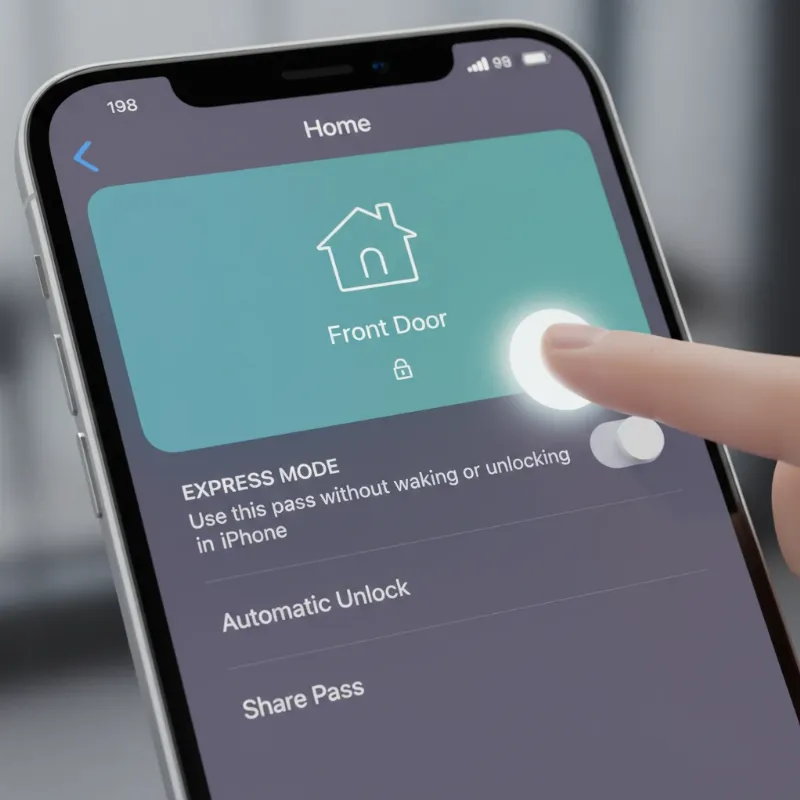 A screenshot or illustration of the Apple Wallet app showing a HomeKey pass and the Express Mode setting being toggled for troubleshooting
5. Specific Scenarios & Tips
Certain situations can trigger HomeKey issues, requiring specific remedies.
- After Wireless Charging: Some users have reported HomeKey issues after wirelessly charging their iPhone in certain car models. If this occurs, updating your iPhone to the latest iOS software is often the recommended fix.
- Issues with Shared HomeKeys: If HomeKey works for the home owner but not for invited family members, try removing and re-inviting those users to your HomeKit home. This can refresh their access permissions.
- Manufacturer-Specific Features: Some smart locks have unique features within their native apps that, when toggled, can surprisingly resolve HomeKey issues. For instance, some Aqara U200 users found success by disabling and re-enabling a “pull spring feature” in the Aqara app. Exploring your lock’s specific settings might uncover a unique solution.
Expert Advice for Maintaining a Reliable HomeKey System
To minimize future HomeKey woes and ensure continuous, reliable access, proactive maintenance is key.
- Regularly Update All Devices: Make a habit of updating iOS, watchOS, and your smart lock’s firmware as soon as new versions are released. Updates often contain crucial bug fixes and performance enhancements.
- Maintain Strong Wi-Fi: Ensure your Wi-Fi network provides strong, consistent coverage to all your HomeKit devices, especially your smart locks and Home Hubs. Consider mesh Wi-Fi systems for larger homes.
- Monitor Lock Battery Life: Replace smart lock batteries proactively, ideally before they fully deplete, to avoid unexpected outages.
- Perform Periodic Restarts: Occasionally restarting your Home Hubs, router, and modem can help clear accumulated network issues and keep your HomeKit ecosystem running smoothly.
“A smart home’s true intelligence lies not just in its features, but in its reliability and ease of troubleshooting. Understanding the underlying connections is key to unlocking its full potential.”
Conclusion
When your Apple HomeKey isn’t responding, it can be a real inconvenience, but with a systematic approach, most issues are resolvable. From simple restarts and network checks to re-adding accessories and verifying settings, these troubleshooting steps empower you to restore seamless access to your home. The convenience and enhanced security that Apple HomeKey provides make it an invaluable part of modern smart living. Don’t let a temporary glitch diminish your smart home experience; follow these guidelines to keep your HomeKey functioning flawlessly. If you continue to face challenges, consulting the smart lock manufacturer’s support or Apple Support can provide further assistance.
Frequently Asked Questions
Is Apple HomeKey secure?
Yes, Apple HomeKey is designed with robust security features. It leverages the secure elements within your iPhone and Apple Watch, employing end-to-end encryption and unique digital keys that are resistant to duplication. This technology offers a high level of security, often surpassing traditional physical keys.
Can multiple users have HomeKey access?
Absolutely. You can easily share HomeKey access with family members and trusted guests through the Apple Home app. Each individual receives their own digital key, which can be managed and revoked at any time, providing flexible and secure control over who enters your home.
What if my iPhone battery dies?
Even if your iPhone battery is completely drained, HomeKey has a power reserve feature that typically allows you to unlock your door for up to five hours after your iPhone has run out of charge. However, it’s always wise to have a backup plan, such as a physical key or a traditional keypad code.