Let’s be honest, we’ve all had that moment of panic. You’re halfway to work, or just getting comfortable in bed, and the thought hits you like a ton of bricks: “Did I lock the front door?” For years, the only solution was to turn the car around or drag yourself out of bed. But today, a Smart Lock With Google Home Integration isn’t just a gadget for tech enthusiasts; it’s a practical solution that brings peace of mind and incredible convenience to your daily life. It’s about turning your front door from a simple barrier into an intelligent guardian of your home.
This guide is your deep dive into the world of smart locks that play nicely with your Google ecosystem. We’ll cut through the jargon and show you how this single upgrade can fundamentally change how you interact with your home, making it safer, smarter, and a whole lot simpler.
What’s the Big Deal with Smart Locks Anyway?
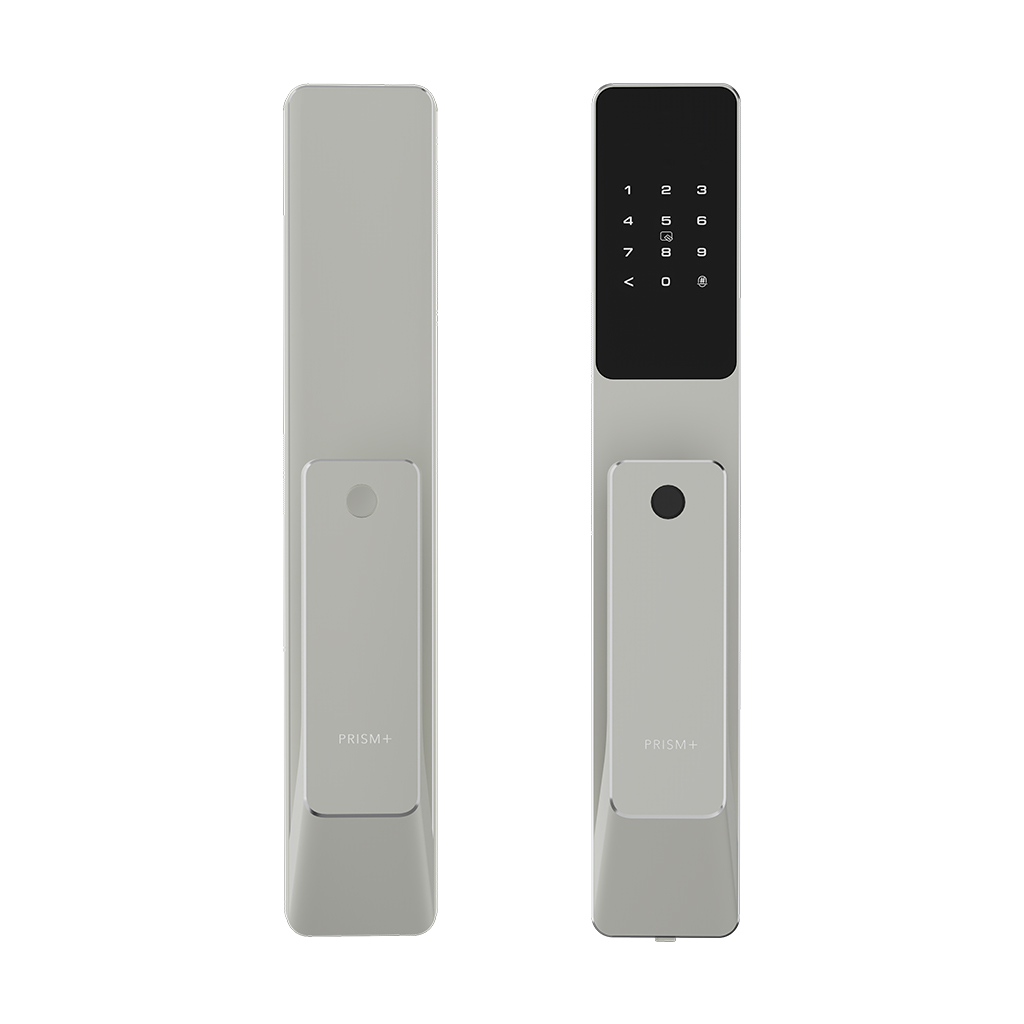
Before we connect everything to Google, let’s talk about the hardware itself. A smart lock is more than just a keyless entry system; it’s a sophisticated device that replaces or augments your traditional deadbolt. Think of it as your old lock’s brainy, hyper-connected cousin.
The journey from a simple pin-and-tumbler lock to a smart deadbolt has been a long one. Early electronic locks used simple keypads, which were a great first step. But the real revolution came with connectivity.
The Technology That Makes It “Smart”
- Bluetooth: This allows your lock to communicate directly with your smartphone when you’re nearby. It’s great for auto-unlocking as you approach the door, but its range is limited.
- Wi-Fi: A built-in Wi-Fi chip connects your lock directly to your home network. This is the key to true remote control—you can lock or unlock your door from anywhere in the world with an internet connection. This is essential for a smart lock with Google Home integration to work seamlessly.
- Z-Wave and Zigbee: These are low-power mesh network protocols common in smart home devices. They are incredibly reliable but usually require a separate hub or bridge to connect to your Wi-Fi router and the internet.
Why a Smart Lock with Google Home Integration is a Game-Changer
Pairing your smart lock with Google Home (and by extension, the Google Assistant) is where the magic truly happens. It elevates the device from a standalone gadget to a core component of your automated home. It’s the difference between having a fancy calculator and having a supercomputer.
So, what can you actually do?
- Hands-Free Voice Control: Juggling groceries? Just say, “Hey Google, lock the front door.” This simple command is a lifesaver when your hands are full. For security, most systems require a PIN to unlock via voice.
- Inclusion in Routines: This is a huge benefit. You can create a “Goodnight” routine that, with a single command, turns off the lights, adjusts the thermostat, and locks your front door.
- Remote Status Checks: Lying in bed and that old anxiety creeps in? Simply ask your Google Nest Hub or your phone, “Hey Google, is the front door locked?” Get instant peace of mind without getting up.
- Seamless Integration with Other Devices: Imagine your Nest Cam detecting motion at your door. You can check the video feed and then immediately tell Google to unlock the door for a trusted visitor, all from the same ecosystem.
How Do I Choose the Right Smart Lock for My Home?
Walking into the smart lock aisle can be overwhelming. Don’t worry, we’ve got you. Focus on these key areas to find the perfect fit for your home and lifestyle.
- Check Your Door Compatibility: Before you buy anything, look at your current door and deadbolt. Is it a standard size? Is the door aligned properly? Most smart locks are designed for standard American doors, but it’s always wise to check the manufacturer’s specifications. A poorly aligned door can cause the smart lock’s motor to strain and drain the battery.
- Decide on Your Connectivity:
- All-in-One (Built-in Wi-Fi): These are the simplest to set up. You just install the lock and connect it to your Wi-Fi. The downside? They can use more battery power.
- Bridge/Hub Required: These locks use Bluetooth, Z-Wave, or Zigbee to connect to a small bridge that plugs into an outlet near your door. That bridge then connects to your Wi-Fi. This method is often more power-efficient.
- Consider Power and Battery Life: All smart locks run on batteries. Look for models that offer a battery life of at least 6-12 months. Most apps will warn you when the battery is low, and many locks also have a backup option, like a hidden keyhole or terminals to temporarily power the lock with a 9V battery from the outside.
- Security Grade Matters: Look for an ANSI/BHMA rating on the lock’s packaging. These are industry standards for security and durability. A Grade 1 rating is the highest for residential locks, but a Grade 2 is also very secure and common for smart locks.
“A common mistake is focusing only on the ‘smart’ features and forgetting that it’s still a physical lock,” notes David Chen, a Certified Home Security Specialist. “A lock with military-grade encryption is useless if the deadbolt itself can be easily broken. Always look for a balance between digital security and robust physical construction.”
Getting Started: A Simple Installation and Setup Guide
Feeling intimidated by the thought of replacing your lock? Don’t be. Most smart locks are designed for a simple DIY installation with just a screwdriver.
- Remove Your Old Deadbolt: Unscrew the interior thumbturn and the two long screws holding the deadbolt in place. Carefully remove both the interior and exterior components.
- Install the New Smart Lock: Follow the manufacturer’s instructions. This usually involves sliding the new deadbolt into the door, mounting the exterior keypad, and then attaching the interior assembly. It typically takes less than 30 minutes.
- Power Up and Calibrate: Insert the batteries and let the lock run its calibration process. This teaches the lock the orientation of your door and how far to extend the deadbolt.
- Connect to the App: Download the lock’s companion app (e.g., August, Yale Access, Schlage Home) and follow the steps to create an account and connect the lock to your phone via Bluetooth.
- Link to Google Home: This is the final, crucial step. Open the Google Home app, tap the ‘+’ icon to set up a new device, and select “Works with Google.” Find your lock’s brand from the list, sign in with your account credentials, and assign your lock to a room. That’s it! You can now control your smart lock with Google Home integration.
For a more detailed walkthrough, check out our complete DIY smart lock installation guide.
Unlocking Advanced Features You’ll Actually Use
The convenience goes far beyond just locking and unlocking with your voice. Here are some of the best features that a smart lock brings to the table.
Guest Access and Temporary Codes
Have a dog walker, a cleaner, or family visiting? Instead of handing out physical keys that can be lost or copied, you can create unique digital keys or keypad codes for them. You can set these codes to work only on specific days and times, and you can revoke access instantly from your phone.
Auto-Lock and Geo-Fencing
- Auto-Lock: This is a simple but brilliant feature. You can set the lock to automatically engage after being unlocked for a set period, like 30 seconds or 5 minutes. No more wondering if you forgot to lock the door behind you.
- Geo-Fencing: This uses your phone’s GPS to know when you’re leaving or arriving home. You can set it to automatically lock the door as you drive away and, in some cases, unlock it as you pull into the driveway.
Activity Logs and Notifications
Want to know when your kids get home from school? A smart lock keeps a detailed 24/7 activity log, so you can see exactly when the door was locked or unlocked and by whom. You can also enable push notifications to get real-time alerts on your smartphone.
Frequently Asked Questions (FAQ)
Q: What happens if my power or Wi-Fi goes out?
A: Your smart lock will still function as a lock. Since it’s battery-powered, a power outage won’t affect it. If the Wi-Fi is down, you won’t be able to control it remotely or with Google Home, but you can still use the keypad, the smartphone app via Bluetooth, or a physical key.
Q: Can I still use a physical key with a smart lock?
A: Most smart locks on the market do include a traditional keyhole as a backup, often hidden behind a panel for a cleaner look. Some ultra-modern models are completely keyless, so be sure to check the model’s specifications if having a key backup is important to you.
Q: How long do the batteries typically last?
A: This varies by model and usage, but most smart locks get between 6 to 12 months on a single set of AA batteries. You’ll receive low-battery warnings via the app and often on the lock itself well in advance.
Q: Is it difficult to connect my smart lock to Google Home?
A: Not at all. The process is handled within the Google Home app and is very straightforward. As long as you choose a lock that is officially “Works with Google,” the integration takes just a few minutes of linking your accounts.
Q: Can I share access with other family members?
A: Yes, absolutely. All smart lock apps allow you to invite family members to have access. They can then control the lock from their own smartphones and link it to their own Google accounts for voice control.
Your Home’s Smartest Upgrade Awaits
Upgrading to a smart lock with Google Home integration is one of the most impactful changes you can make to your home. It’s a seamless blend of security and convenience that solves real, everyday problems. You’re not just adding a new gadget; you’re investing in peace of mind, simplifying your routines, and making your home a more secure and welcoming place. Isn’t it time your front door got as smart as the rest of your home?