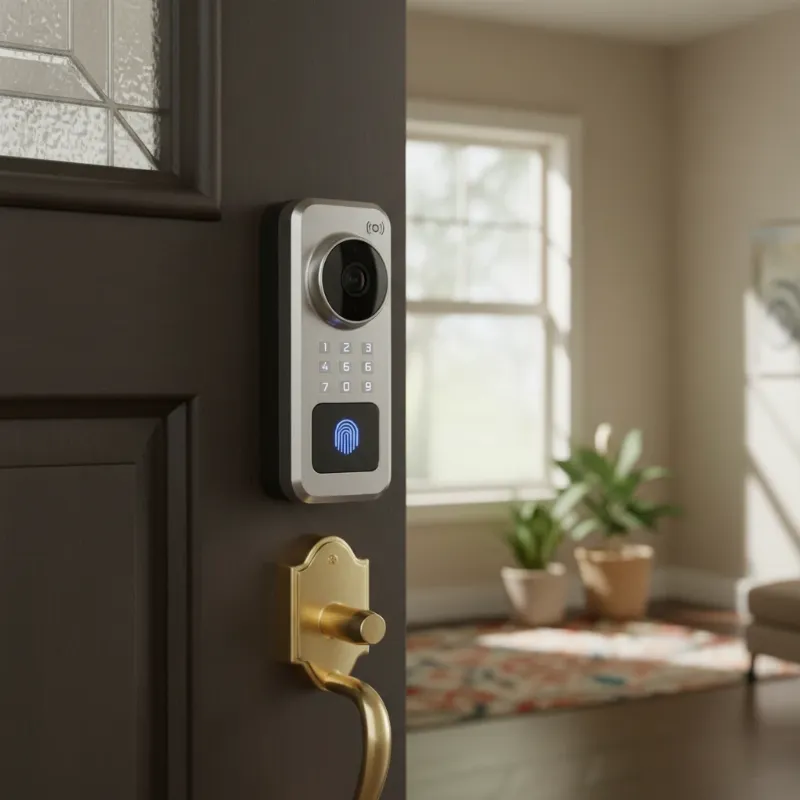
A malfunctioning smart lock keypad can be incredibly frustrating, transforming the convenience of keyless entry into a locked-out nightmare. Imagine rushing home, eager to step inside, only to be met by an unresponsive keypad. You tap, you press, but nothing happens. This common issue often has straightforward solutions, and understanding the root causes can save you time, stress, and the cost of a professional call-out. This guide will walk you through a comprehensive array of troubleshooting steps, helping you diagnose and effectively fix a smart lock keypad that isn’t cooperating.
What Causes a Smart Lock Keypad to Fail?
Before diving into solutions, it’s crucial to understand why your smart lock keypad might stop working. Several factors can lead to an unresponsive or faulty keypad, ranging from simple power issues to more complex technical glitches. Identifying the potential cause is the first step toward a successful fix.
The most frequent culprit behind a dead keypad is often the power source. Smart locks, particularly their keypads, rely on batteries, and when these run low or die, the keypad can become sluggish or completely unresponsive. Environmental factors like dirt, grime, or moisture accumulating on the keypad surface can also interfere with button presses, leading to poor contact and failed entry. Furthermore, smart locks are sophisticated electronic devices, making them susceptible to software bugs, firmware issues, or temporary connectivity problems with your home network or smartphone. Less commonly, but still significant, are physical wear and tear or internal damage to the keypad’s components over time.
Low or Dead Batteries
|
Our Picks for the Best smart locks in 2026
As an Amazon Associate I earn from qualifying purchases.
|
||
| Num | Product | Action |
|---|---|---|
| 1 | Yale Security Assure Lock 2 Deadbolt, Black Suede Keyed Smart Entry Door Lock with Wi-Fi Connected Keypad for Code Entry and Remote Access, YRD410-WF1-BSP |

|
| 2 | Tapo Smart Wi-Fi Deadbolt Door Lock – Keyless Tactile Buttons, Customized Access with in-App Monitoring, Auto-Lock, IP54 Weatherproof, BHMA Grade 3, Compatible with Standard Door Sizes, Tapo DL100 |
|
| 3 | Smart Door Lock with Camera Fingerprint Keyless Entry Door Lock Electronic Deadbolt with Keypad Code, App Remote Control, Auto Unlock for Front Door |
|
| 4 | Wyze Auto-Lock Bolt v2, Fingerprint Keyless Entry Smart Lock, AI Learning Scanner with Wi-Fi Front Door Lock Deadbolt, Auto-Lock, 8 Months Battery, BHMA2, IP53, Anti-Peep Keypad, Backup Keys |
|
| 5 | Schlage Encode Smart WiFi Deadbolt Lock for Front Door - Keyless Entry with App or Touchscreen - Works with Alexa, Hey Google, & Airbnb - Create Codes for Guests - Matte Black |
|
| 6 | Smart Door Handle Lock with Keypad: Yamiry Fingerprint Smart Knob - Keyless Entry Digital Lock for Front Door - Deadbolt with APP - Generate Passcode Remotely - DIY Installation |
|
| 7 | Schlage Encode Smart WiFi Deadbolt Lock for Front Door - Keyless Entry with App or Touchscreen - Works with Alexa, Hey Google, & Airbnb - Create Codes for Guests - Satin Nickel Silver |
|
| 8 | ULTRALOQ U-Bolt Pro WiFi Smart Lock with Door Sensor, 8-in-1 Keyless Entry Door Lock with Fingerprint ID, App Remote Control, Built-in WiFi Keypad Deadbolt, Auto Unlock, IP65 Waterproof, Easy Install |
|
| 9 | TEEHO TE001 Keyless Entry Door Lock with Keypad - Smart Deadbolt Lock for Front Door with 2 Keys - Auto Lock - Easy Installation - Matte Black |
|
| 10 | Wyze Palm Lock, Smart Door Lock with Palm Vein Recognition, Keyless Entry Smart Locks for Front Door, Keypad, Auto Lock, Dual Battery, Wi-Fi, Works with Alexa & Google, BHMA, IP53, Mechanical Key |
|
This is hands down the most common reason for a smart lock keypad to stop responding. Most smart locks are battery-powered, and as battery levels deplete, the keypad’s functionality can degrade, leading to delayed responses or complete failure.
Dirt, Debris, or Moisture
Over time, dust, dirt, grime, and even moisture can accumulate on the keypad’s surface, particularly in outdoor environments. This buildup can interfere with the sensitivity of the buttons, preventing proper registration of your input.
Connectivity Issues
For smart locks that rely on Wi-Fi or Bluetooth for communication with the main lock mechanism or your smart home hub, a weak or lost connection can render the keypad useless. Interference, distance from the router, or network outages can all play a role.
Software Glitches or Firmware Bugs
Like any electronic device, smart locks run on software. Bugs in the firmware or temporary software glitches can cause the keypad to freeze or malfunction. An outdated firmware version might also contain known issues that have been resolved in newer updates.
Physical Damage or Wear and Tear
Constant use can lead to physical wear on the keypad buttons, making them less responsive. Additionally, accidental damage, harsh weather exposure, or internal component failures can also cause the keypad to stop working correctly.
Misalignment of the Lock Mechanism
While not directly a keypad issue, if the deadbolt or latch mechanism is misaligned or jammed, the lock’s system might prevent the keypad from engaging, even if your code is entered correctly. This is a common issue that often goes overlooked.
Essential Troubleshooting Steps for Your Smart Lock Keypad
When your smart lock keypad refuses to cooperate, a systematic approach to troubleshooting is your best bet. Start with the simplest checks and gradually move to more complex solutions.
Start with the Basics: Check Batteries
This is the first and most crucial step. Many issues with smart lock keypads stem from insufficient power. Most keypads use standard AA or AAA batteries, and their lifespan can vary significantly based on usage and environmental factors.
To begin, remove the battery cover, typically located on the interior side of the door. Carefully take out the old batteries and inspect the battery compartment for any corrosion or damage. Replace the old batteries with a fresh set of high-quality alkaline batteries. It’s often recommended to avoid rechargeable batteries as some smart locks do not perform optimally with them. Once the new batteries are in, re-attach the cover and test the keypad. You might be surprised how often this simple fix resolves the problem entirely.
Clean the Keypad Thoroughly
Accumulated dirt, dust, and grime can hinder the keypad’s sensitivity, preventing it from registering your presses accurately. A thorough cleaning can often restore full functionality.
Use a soft, dry, lint-free cloth to gently wipe down the entire keypad surface. For stubborn grime, you can slightly dampen the cloth with water or a mild, non-abrasive cleaner. Avoid spraying cleaner directly onto the keypad, as moisture can seep into the electronics. Pay close attention to the spaces between the buttons, ensuring no debris is lodged there. If your lock has a fingerprint sensor, ensure it is also clean and dry for optimal performance. Regular cleaning, especially for outdoor-facing keypads, can prevent these issues from recurring.
Reboot or Reset Your Smart Lock
A quick reboot can often resolve minor software glitches, much like restarting your smartphone or computer. If a simple reboot doesn’t work, a factory reset might be necessary, though this should be considered a last resort as it will erase all existing codes and settings.
To perform a soft reboot, you can usually remove one battery from the lock, wait for about 30 seconds, and then reinsert it. This will cycle the power and may clear any temporary software errors. If the keypad remains unresponsive, consult your smart lock’s manual for instructions on a factory reset. This process typically involves pressing a hidden reset button or a specific sequence of keypad inputs. Be aware that a factory reset will revert the lock to its original settings, requiring you to reprogram all user codes and re-pair the lock with your smart home system.
Verify Connectivity (Wi-Fi/Bluetooth)
Many smart lock keypads communicate wirelessly with the main lock mechanism or a central hub. If this connection is unstable or lost, the keypad won’t be able to transmit your input.
First, ensure your home Wi-Fi network is active and functioning correctly if your lock uses Wi-Fi. Try restarting your Wi-Fi router. For Bluetooth-enabled keypads, make sure your smartphone (if controlling the lock via an app) is within range of the lock. If the issue persists, try re-pairing the keypad with the smart lock or your smart home hub through the manufacturer’s mobile application. Check the app for any connectivity status indicators or diagnostic tools that can help identify and resolve connection problems. Thick walls or other electronic devices can sometimes interfere with wireless signals, so consider the lock’s proximity to your router or hub.
Update Firmware
Smart lock manufacturers frequently release firmware updates to improve performance, enhance security, and fix known bugs. An outdated firmware version could be the source of your keypad’s problems.
Check your smart lock’s companion app for any available firmware updates. The app will typically guide you through the process of downloading and installing the update, which often requires the lock to be connected to your Wi-Fi or Bluetooth network. It’s crucial to ensure the lock has sufficient battery power before starting a firmware update to prevent interruptions. Keeping your firmware current is a vital part of smart lock maintenance and can preempt many potential issues.
Recalibrate the Keypad or Sensor
Some smart locks allow for keypad or sensor recalibration through their dedicated mobile applications. This can help if the keypad is registering incorrect inputs or if a fingerprint sensor is having trouble recognizing prints.
Refer to your smart lock’s user manual or the manufacturer’s app for specific instructions on how to recalibrate. This process typically involves accessing the lock’s settings within the app and following a series of prompts. Recalibration essentially “re-teaches” the lock how to correctly interpret inputs from the keypad or sensor, optimizing its responsiveness and accuracy.
Inspect for Physical Obstructions and Misalignment
While your keypad itself might be functioning, a physical obstruction or misalignment in the door or deadbolt mechanism can prevent the lock from engaging, making it seem like the keypad isn’t working.
Open the door and test the lock while it’s ajar. If the deadbolt extends and retracts smoothly when the door is open but struggles when closed, the issue is likely with door alignment. Check the strike plate on the door frame to ensure it aligns perfectly with the deadbolt. You might need to adjust the strike plate or even the door hinges. Also, inspect the area around the deadbolt for any debris or foreign objects that might be preventing it from fully extending or retracting. A lubricant like graphite spray can help if the mechanism feels sticky.
“A smart lock is only as ‘smart’ as its installation and maintenance. Often, a non-responsive keypad is a cry for fresh batteries or a simple recalibration, not a complete system failure.” – Maria Rodriguez, Home Security Expert
When to Call a Professional Locksmith
While many smart lock keypad issues can be resolved with DIY troubleshooting, there are instances when professional help is essential. Knowing when to call an expert can prevent further damage and ensure your home security remains intact.
If you’ve systematically tried all the above troubleshooting steps and your smart lock keypad remains unresponsive, it might indicate a more serious internal hardware fault. Mechanical failures within the lock, faulty wiring that is not easily accessible, or irreparable damage to the keypad unit itself often require specialized tools and expertise to diagnose and fix. Furthermore, if your smart lock is still under warranty, attempting complex repairs yourself might void it. A professional locksmith specializing in smart lock repair can accurately identify the problem and carry out necessary component replacements or repairs without compromising your lock’s integrity or warranty.
Preventing Future Keypad Issues: Maintenance Tips
Proactive maintenance is key to ensuring the longevity and reliable performance of your smart lock keypad. A little effort now can save you a lot of hassle later.
Regularly check and replace your smart lock batteries, ideally every 6-12 months, or as soon as you receive low battery warnings from the accompanying app. Use high-quality, non-rechargeable batteries for best performance. Make it a habit to clean your keypad regularly, especially if it’s exposed to the elements, to prevent dirt and grime buildup. Stay vigilant for firmware updates from the manufacturer and install them promptly, as these often include bug fixes and performance enhancements. Lastly, always have a backup access plan, such as a traditional key (if available) or a hidden spare key for emergencies, to avoid being locked out if your smart lock unexpectedly fails.
Conclusion
A non-functioning smart lock keypad can disrupt the seamless convenience you’ve come to expect from your smart home. However, by systematically addressing common culprits like low batteries, dirt accumulation, connectivity issues, and software glitches, you can often restore your keypad to full functionality. Remember to start with simple checks and progress through more technical solutions, always consulting your device’s manual. Regular maintenance, including battery replacement and cleaning, is vital for long-term reliability.
Embrace the security and convenience that smart locks offer by ensuring they are always in optimal working condition. Don’t let a minor glitch turn into a major inconvenience; empower yourself with the knowledge to troubleshoot and maintain your smart lock. Is your smart lock keypad giving you trouble?
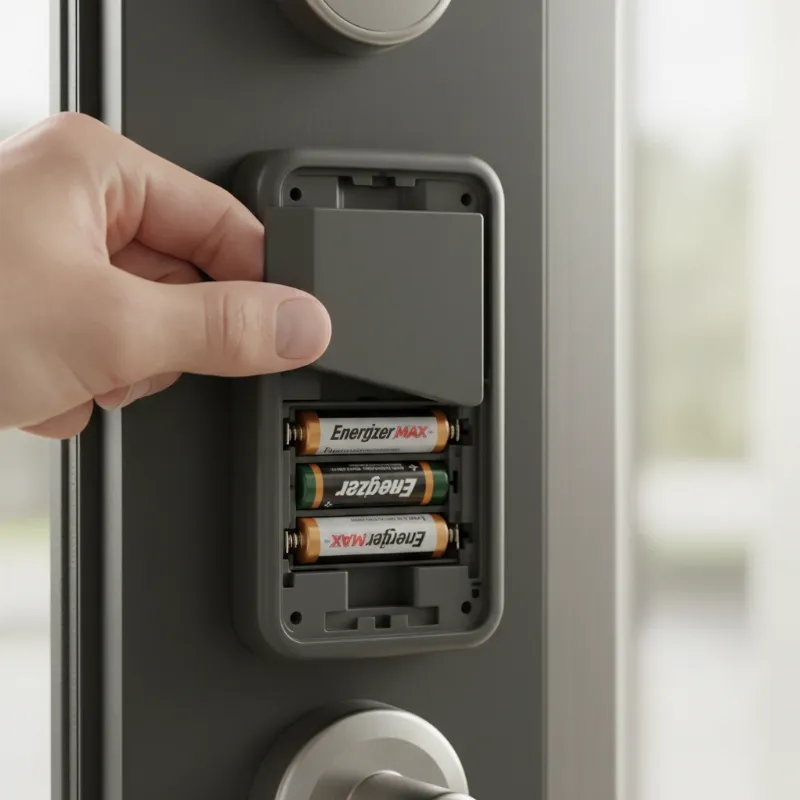 A hand checking batteries in a smart lock keypad, highlighting maintenance for fixing issues.
Frequently Asked Questions
Is a smart lock keypad safe?
Yes, smart lock keypads are generally safe, often featuring advanced encryption and security protocols to protect your codes. Many include features like auto-locking, tamper alarms, and randomized key sequences to prevent code guessing. However, security also depends on user practices like choosing strong passcodes, keeping firmware updated, and not sharing codes with unauthorized individuals.
How often should I change smart lock batteries?
It is generally recommended to change your smart lock batteries every 6 to 12 months, depending on usage frequency and battery type. Most smart lock apps provide low battery warnings, which should be heeded immediately. Using high-quality alkaline batteries and avoiding rechargeable ones can also extend the time between changes and ensure more consistent performance.
Can weather affect my smart lock keypad?
Yes, extreme weather conditions can affect your smart lock keypad. Extreme cold can reduce battery performance and screen responsiveness, while excessive heat or direct sunlight can sometimes cause electronic components to overheat. Rain and moisture can also lead to issues if the lock’s weather sealing is compromised. Choosing a weather-resistant smart lock and performing regular maintenance can mitigate these effects.