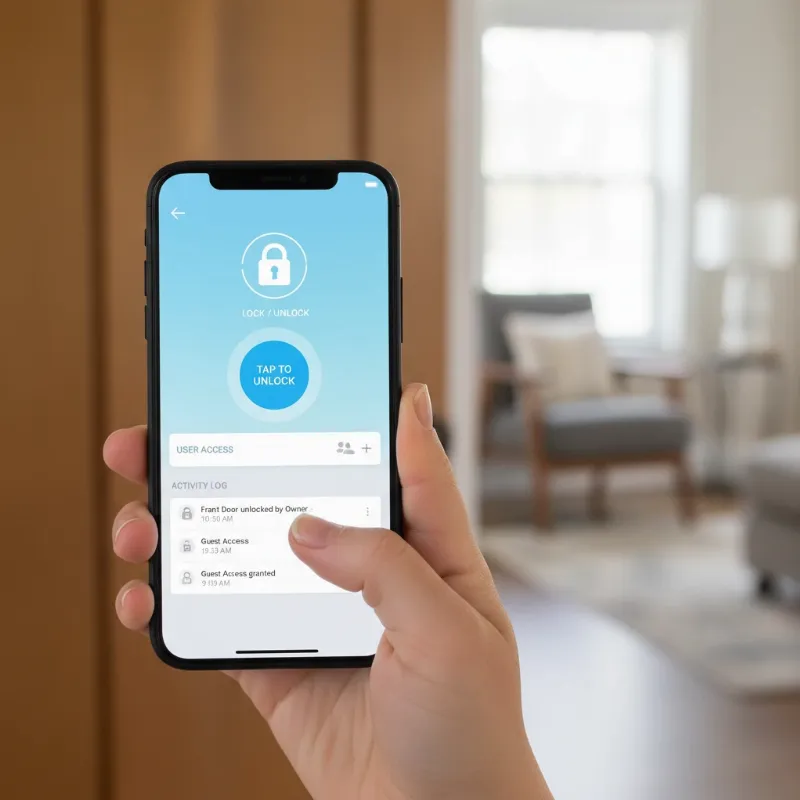
Smart locks represent a significant leap in home security and convenience, but like any sophisticated technology, they rely on regular software maintenance to function optimally. Keeping your smart lock’s firmware updated is not merely a suggestion; it is a critical practice for ensuring its security, performance, and compatibility with your evolving smart home ecosystem. Ignoring these updates can leave your home vulnerable, diminish your lock’s efficiency, and prevent you from accessing the latest features.
What is Smart Lock Firmware?
Smart lock firmware is the specialized software embedded directly into your smart lock’s hardware, acting as its operating system. It dictates how the lock performs all its functions, from recognizing fingerprints and processing access codes to communicating with your smartphone and other smart home devices. Essentially, firmware is the brain of your smart lock, enabling every intelligent action it takes.
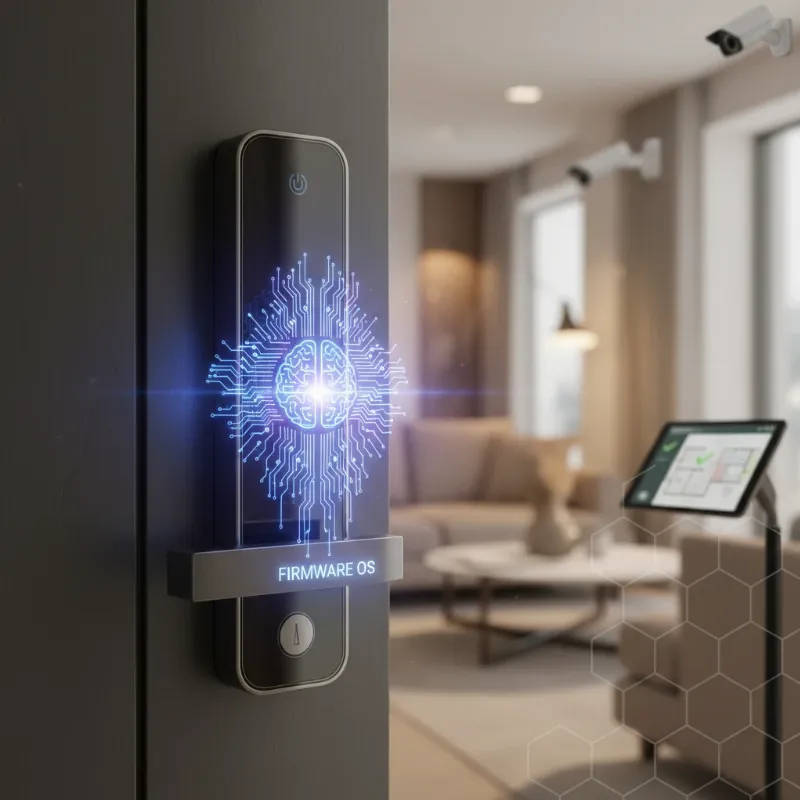 Smart lock with circuit board overlay representing firmware as its digital brain controlling functions.
This integral software ensures your lock responds to commands, manages security protocols, and interacts smoothly within your connected home. Without up-to-date firmware, your smart lock cannot fully adapt to new threats, leverage new capabilities, or maintain seamless integration with your wider smart home network. Its proper functioning is paramount to the overall security and convenience your smart lock promises.
Why You Should Update Your Smart Lock Firmware
Updating your smart lock’s firmware offers a multitude of benefits, extending far beyond simple bug fixes. These updates are essential for fortifying your home’s defenses and optimizing your lock’s performance. Neglecting them can expose your system to unnecessary risks and hinder its full potential.
Enhanced Security
|
Our Picks for the Best smart locks in 2026
As an Amazon Associate I earn from qualifying purchases.
|
||
| Num | Product | Action |
|---|---|---|
| 1 | Yale Security Assure Lock 2 Deadbolt, Black Suede Keyed Smart Entry Door Lock with Wi-Fi Connected Keypad for Code Entry and Remote Access, YRD410-WF1-BSP |

|
| 2 | Schlage Encode Smart WiFi Deadbolt Lock for Front Door - Keyless Entry with App or Touchscreen - Works with Alexa, Hey Google, & Airbnb - Create Codes for Guests - Satin Nickel Silver |
|
| 3 | ULTRALOQ U-Bolt Pro WiFi Smart Lock with Door Sensor, 8-in-1 Keyless Entry Door Lock with Fingerprint ID, App Remote Control, Built-in WiFi Keypad Deadbolt, Auto Unlock, IP65 Waterproof, Easy Install |
|
| 4 | TEEHO TE001 Keyless Entry Door Lock with Keypad - Smart Deadbolt Lock for Front Door with 2 Keys - Auto Lock - Easy Installation - Matte Black |
|
| 5 | Tapo Smart Wi-Fi Deadbolt Door Lock – Keyless Tactile Buttons, Customized Access with in-App Monitoring, Auto-Lock, IP54 Weatherproof, BHMA Grade 3, Compatible with Standard Door Sizes, Tapo DL100 |
|
| 6 | Wyze Auto-Lock Bolt v2, Fingerprint Keyless Entry Smart Lock, AI Learning Scanner with Wi-Fi Front Door Lock Deadbolt, Auto-Lock, 8 Months Battery, BHMA2, IP53, Anti-Peep Keypad, Backup Keys |
|
| 7 | Smart Door Lock with Camera Fingerprint Keyless Entry Door Lock Electronic Deadbolt with Keypad Code, App Remote Control, Auto Unlock for Front Door |
|
| 8 | Smart Door Handle Lock with Keypad: Yamiry Fingerprint Smart Knob - Keyless Entry Digital Lock for Front Door - Deadbolt with APP - Generate Passcode Remotely - DIY Installation |
|
| 9 | Schlage Encode Smart WiFi Deadbolt Lock for Front Door - Keyless Entry with App or Touchscreen - Works with Alexa, Hey Google, & Airbnb - Create Codes for Guests - Matte Black |
|
| 10 | Wyze Palm Lock, Smart Door Lock with Palm Vein Recognition, Keyless Entry Smart Locks for Front Door, Keypad, Auto Lock, Dual Battery, Wi-Fi, Works with Alexa & Google, BHMA, IP53, Mechanical Key |
|
Firmware updates often include vital security patches that address newly discovered vulnerabilities. These patches close potential loopholes that malicious actors could exploit, safeguarding your home from unauthorized access and cyber threats. Regularly updating ensures your smart lock remains a formidable barrier against intruders.
Improved Performance
Manufacturers continuously refine their smart lock technology, and firmware updates often deliver significant performance enhancements. These can include faster response times, more accurate biometric recognition, and smoother operation of the locking mechanism. These improvements ensure a more reliable and responsive user experience.
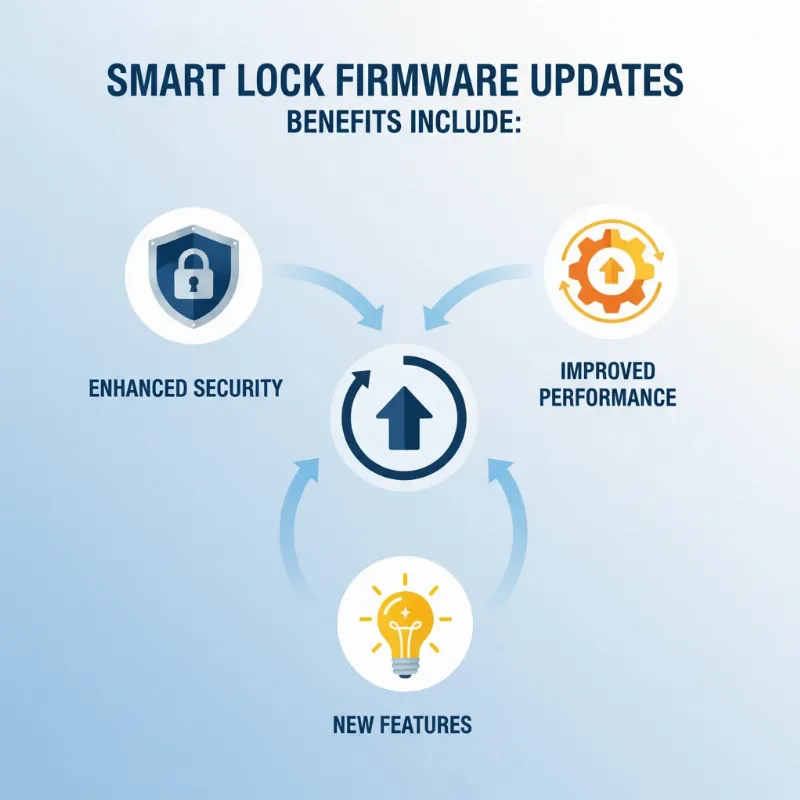 Icons representing enhanced security, improved performance, and new features from smart lock firmware updates.
New Features
Updates are frequently used to roll out exciting new features and functionalities, transforming your smart lock’s capabilities. This could range from enhanced remote access options and improved activity logging to new integration possibilities with other smart home platforms, expanding your smart lock’s versatility.
Compatibility
As smart home ecosystems evolve, so too must individual devices. Firmware updates ensure your smart lock remains compatible with the latest operating systems on your smartphone, new smart home hubs, and emerging communication protocols. This prevents compatibility issues that could disrupt your smart home’s seamless operation.
Common Methods for Updating Smart Lock Firmware
While specific steps may vary by brand, most smart locks offer convenient methods for firmware updates, primarily through their dedicated mobile applications. Understanding these common approaches will prepare you for a smooth update process.
Via Mobile App
This is the most prevalent and user-friendly method for updating smart lock firmware. Most smart lock manufacturers provide a companion mobile application that allows you to manage your lock’s settings, including firmware updates. Typically, the app will notify you when an update is available or allow you to manually check in the settings menu. You will generally need to be within Bluetooth range of your lock for the update to successfully download and install.
Over-the-Air (OTA) Updates
Many Wi-Fi-connected smart locks can receive over-the-air (OTA) updates. This means the lock downloads the firmware directly from the internet, often without needing your phone to remain nearby during the entire process. Some locks, like the Schlage Arrive, even feature automatic daily updates during specific off-peak hours, provided they have a strong Wi-Fi connection and are paired with their respective app. This hands-off approach ensures your lock stays current with minimal effort.
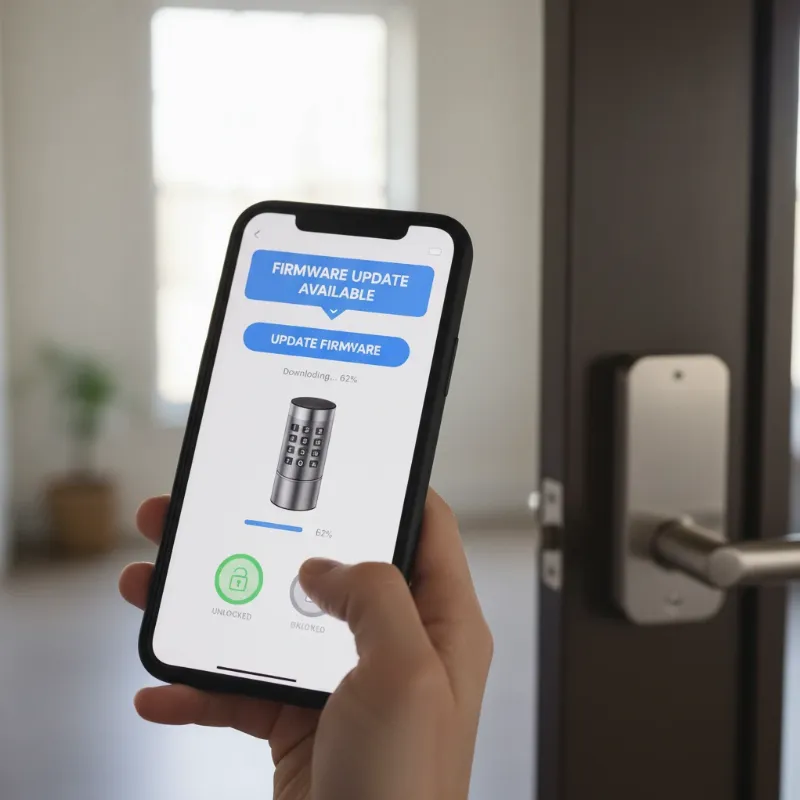 Smartphone screen displaying a smart lock app with an "Update Firmware" button and a progress bar.
Manual Updates (Less Common)
In rare cases, or for specific troubleshooting scenarios, a manufacturer might provide a manual update method, such as via a USB drive or a series of physical button presses on the lock itself. The Schlage Arrive, for instance, offers a manual update by rapidly pressing an interior button five times. This method is less common for routine updates but can be useful when app-based updates are not feasible or fail.
Step-by-Step Guide: How to Update Your Smart Lock Firmware (General)
Updating your smart lock’s firmware is a straightforward process, typically managed through its dedicated mobile application. Following these general steps will help ensure a successful and secure update.
- Preparation is Key: Before initiating any update, ensure both your smartphone and your smart lock have sufficient battery levels. Many manufacturers recommend at least 20% for your phone and 40% for your lock to prevent interruptions. Also, confirm your smartphone has a stable internet connection (Wi-Fi or cellular) and that Bluetooth is enabled if your lock relies on a Bluetooth connection for updates. If your lock uses a bridge, some manufacturers, like Ultraloq, suggest unplugging it before starting the update.
- Open Your Smart Lock’s App: Launch the mobile application associated with your smart lock. This is where you’ll manage all your lock’s settings and initiate the update process.
- Navigate to Lock Settings: Within the app, locate the settings menu for your specific smart lock. This is often represented by a gear icon or labeled as “Settings,” “Device Information,” or “Utilities.”
- Find the Firmware Update Option: Look for an option explicitly labeled “Firmware,” “Firmware Update,” or “System Update.” Some apps might display a notification on the home screen if an update is available, prompting you to “Update Now.”
- Initiate the Update: If an update is available, you will typically see a button to “Update Now” or “Upgrade.” Tap this to begin the download and installation.
- Maintain Proximity and Connectivity: For Bluetooth-based updates, it’s crucial to keep your smartphone close to your smart lock (within 3-10 feet or 1.5 meters, depending on the brand) and keep the app open throughout the process. Some updates can take several minutes (e.g., 2-5 minutes for Ultraloq, 15-20 minutes for Schlage Bluetooth updates), so patience is key. For Wi-Fi-based OTA updates, you might not need to keep the app open or stay nearby.
- Post-Update Verification: Once the update is complete, the app should provide a confirmation message. You can often verify the new firmware version in the lock’s settings. Some locks may also require a calibration step after updating, as seen with SimpliSafe.
“Regular firmware updates are the digital shield for your smart lock, protecting it from evolving threats and enhancing its capabilities.”
Important Considerations Before Updating Firmware
Before you embark on a firmware update, a few crucial checks can prevent potential issues and ensure a smooth experience. Taking these precautions will help maintain your smart lock’s reliability.
- Battery Level: Always ensure both your smart lock and the smartphone or device you’re using for the update have sufficient battery charge. A low battery on either device can interrupt the update process, potentially leading to errors.
- Internet Connectivity: A stable internet connection (Wi-Fi for the lock, or Wi-Fi/cellular for your phone) is essential for downloading the firmware package. Unstable connections can cause corrupted downloads or failed installations.
- Manufacturer’s Instructions: While general steps are helpful, always prioritize the specific instructions provided by your smart lock’s manufacturer. Each brand and model may have unique requirements or recommended procedures.
- Backup Settings (If Possible): Some advanced smart locks or systems might offer an option to back up your settings (e.g., user codes, schedules) before a major firmware update. If available, this can be a good safeguard, though it’s less common for basic smart lock firmware updates.
- Proximity: For Bluetooth-dependent updates, ensure your phone remains very close to the lock throughout the entire process. Moving too far away can cause the connection to drop and the update to fail.
- Bridge Status: If your smart lock uses a Wi-Fi bridge, check the manufacturer’s advice regarding its status during an update. Some, like Ultraloq, suggest unplugging the bridge beforehand.
Troubleshooting Common Firmware Update Issues
Even with careful preparation, firmware updates can sometimes encounter hiccups. Knowing how to troubleshoot common problems can help you quickly resolve issues and get your smart lock back in optimal working order.
- Update Failure/Stuck Progress: If the update doesn’t complete or gets stuck, first try restarting your smartphone and then power cycling your smart lock by temporarily removing and reinserting its batteries. Ensure you are within the recommended Bluetooth range and that your phone’s Bluetooth is active. Then, attempt the update again.
- Lock Unresponsive After Update: If your lock becomes unresponsive, check its battery levels. If the batteries are low, replace them with fresh ones. A power cycle (removing and reinserting batteries) can also help reset the lock.
- “Smart Lock Not In Bluetooth Range” Error: This typically means your phone is too far from the lock or Bluetooth is disabled. Move closer to the lock, ensure Bluetooth is active on your phone, and consider disconnecting other Bluetooth devices that might interfere. In some cases, removing and re-pairing the lock with your phone’s Bluetooth settings might resolve the issue.
- Update Option Missing: If you can’t find the firmware update option in your app, ensure your app itself is updated to the latest version. An outdated app might not display the correct options.
- Loss of Settings: While rare, if an update causes a loss of settings, you might need to reconfigure user codes or schedules. This underscores the importance of regularly backing up crucial access information.
- Contact Customer Support: If you’ve tried all troubleshooting steps and the problem persists, do not hesitate to contact your smart lock’s customer support. They can provide brand-specific guidance, manual installation instructions, or further diagnostic assistance.
Future Trends in Smart Lock Firmware Updates
The landscape of smart lock technology is constantly evolving, and firmware updates will play a pivotal role in shaping its future. We can anticipate more advanced, seamless, and secure update mechanisms that leverage emerging technologies.
- Integrated Artificial Intelligence (AI): Future firmware updates may incorporate more sophisticated AI algorithms, allowing smart locks to learn user patterns for predictive locking/unlocking, enhanced anomaly detection for security, and more personalized access control.
- Enhanced Connectivity and Interoperability: Firmware will continue to drive deeper integration with broader smart home ecosystems, enabling seamless communication with other devices like smart lighting, thermostats, and security cameras for more cohesive automation routines.
- Blockchain for Security: The adoption of blockchain technology could revolutionize firmware updates by providing an immutable ledger for update verification, significantly reducing the risk of malicious firmware injection and enhancing trust in the update process.
- Voice and Gesture Control Integration: As voice assistants and gesture recognition become more commonplace, future firmware updates will likely introduce more robust and intuitive control methods, allowing for hands-free or even touch-free interaction with your smart lock.
Conclusion
Keeping your smart lock’s firmware updated is a fundamental aspect of maintaining a secure, efficient, and technologically advanced home. It’s not just about getting new features; it’s about safeguarding your property with the latest security patches, optimizing performance, and ensuring seamless integration within your smart home ecosystem. By understanding the process, preparing adequately, and knowing how to troubleshoot, you empower your smart lock to deliver its full potential. Make firmware updates a regular part of your smart home maintenance routine, and enjoy the peace of mind that comes with a truly smart and secure entrance.
Are you maximizing the security and convenience of your smart lock by keeping its firmware current?
Frequently Asked Questions
Is updating smart lock firmware safe?
Yes, updating smart lock firmware is generally very safe and highly recommended. These updates are crucial for patching security vulnerabilities, fixing bugs, and enhancing performance, making your lock more secure and reliable. Manufacturers thoroughly test updates before release to ensure stability and compatibility, minimizing risks to your device.
What happens if my smart lock update fails?
If a smart lock firmware update fails, your lock may become temporarily unresponsive or revert to its previous firmware version. Common solutions include restarting your phone, power cycling the lock (removing/reinserting batteries), ensuring you are within Bluetooth range, and checking for stable internet. If issues persist, consult the manufacturer’s troubleshooting guide or contact customer support.
How often should I update my smart lock firmware?
The frequency of smart lock firmware updates varies by manufacturer and model, but it’s generally recommended to update whenever a new version becomes available. Many smart locks will notify you via their app, and some even perform automatic updates. Regularly checking for updates ensures you benefit from the latest security enhancements, bug fixes, and new features.