Smart locks bring unparalleled convenience and enhanced security to your home, but like any sophisticated technology, they sometimes need a fresh start. Whether you’re moving, selling your home, or simply troubleshooting an issue, knowing how to perform a factory reset on your Schlage smart lock is a crucial skill. This guide will walk you through the precise steps to restore your Schlage smart lock to its original factory settings, ensuring optimal performance and peace of mind.
What Does a Factory Reset Do?
A factory reset essentially wipes the slate clean for your Schlage smart lock. It returns the device to the state it was in when it left the factory. This means all custom settings, including user access codes, administrator codes, Wi-Fi network configurations, and any app pairings with your smart home system, will be permanently erased. The lock will revert to its default programming and security settings, typically requiring the original default codes found on the lock’s sticker to operate immediately after the reset.
When to Factory Reset Your Schlage Smart Lock
There are several key scenarios where a factory reset is not just recommended, but often necessary, to maintain security and functionality. Understanding these situations can help you decide if a reset is the right course of action for your smart lock.
- Selling Your Home or Moving Out: This is paramount for security. A factory reset ensures that no previous access codes or connections to your personal smart home accounts remain with the lock, preventing unauthorized access by new occupants.
- Troubleshooting Issues: If your lock is experiencing persistent glitches, connectivity problems, or unusual behavior that can’t be resolved through simpler methods, a factory reset can often clear software bugs and restore proper operation.
- Security Concerns: In rare cases, if you suspect unauthorized access or compromise of your lock’s codes, a full reset can immediately revoke all existing access and allow you to start fresh with new, secure settings.
- Gifting or Donating: Similar to selling, resetting the lock ensures the new owner receives a device ready for their own secure setup, free from your data.
Before You Begin: Essential Preparations
Before initiating the factory reset process, a few preparatory steps can save you time and prevent potential headaches. Taking these precautions ensures a smooth and secure transition.
First, locate your lock’s default programming code and user codes. These are usually found on a sticker on the back of the lock’s interior assembly or inside the battery compartment. You will need these codes to re-establish control over your lock immediately after the reset. Next, if your lock is paired with a smart home app or system, it’s wise to note down any specific configurations you’ve set up, as these will need to be re-entered. Finally, ensure you have fresh batteries on hand, as a low battery could interfere with the reset process.
How to Factory Reset Your Schlage Encode Smart Lock (BE489)
The Schlage Encode smart lock is a popular model known for its Wi-Fi capabilities. The factory reset process for this model is straightforward, primarily involving a physical button press.
To begin, carefully remove the battery cover from the interior side of your Schlage Encode lock. Once exposed, locate the small, black circular reset button. This button is typically situated to the right of the thumbturn, within the interior assembly. Press and hold this black reset button firmly. You will observe the lock’s LED light begin to flash red. Continue to hold the button down until the red flashing ceases and the LED illuminates with a solid blue light. This typically takes up to 10 seconds. Once the solid blue light appears, release the button. Your Schlage Encode is now reset to its factory defaults. You can then use the default codes found on the sticker under the battery cover to reconfigure your lock.
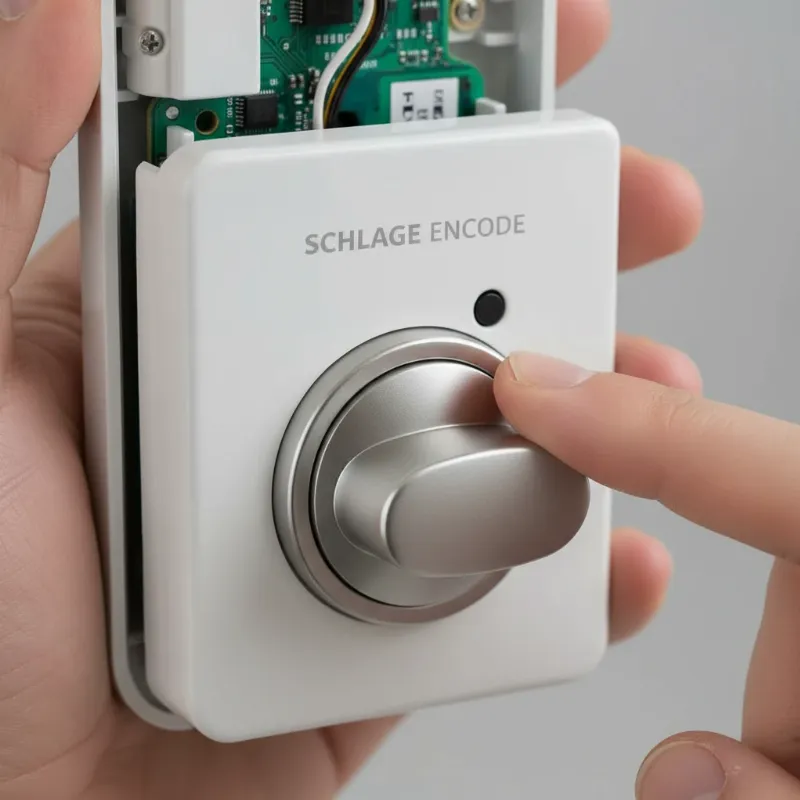 A hand pressing the small black reset button on the interior of a Schlage Encode smart lock.
How to Factory Reset Your Schlage Connect Smart Deadbolt (BE468/BE469)
The Schlage Connect smart deadbolt, often integrated with Z-Wave or Zigbee systems, has a slightly different reset procedure that involves disconnecting the battery.
Start by ensuring the deadbolt’s latch is retracted. Next, remove the decorative battery cover from the interior unit of your Schlage Connect lock. Once the cover is off, disconnect the battery pack from the lock. To discharge any residual electricity, press and hold the exterior Schlage button several times; nothing visible will happen during this step. Now, press and hold the exterior Schlage button continuously while simultaneously reconnecting the battery pack. Keep the button held until three green check marks appear on the face of the lock. Once these check marks are visible, release the Schlage button and replace the battery cover. To complete the reset and initiate the lock’s setup routine, press the outside Schlage button again, and then enter one of the original factory preset user codes that came with your lock.
Other Schlage Smart Locks
While the Schlage Encode and Connect models are among the most common, Schlage offers a range of other smart locks, each with potentially unique reset procedures. If your specific Schlage model is not the Encode (BE489) or Connect (BE468/BE469), it’s always best to consult the official user manual for your particular lock. The general principle often involves locating a reset button or following a specific sequence of button presses and battery management. Always refer to your product’s documentation to ensure you follow the correct steps for your exact model.
After the Reset: Re-establishing Your Lock
Once you have successfully factory reset your Schlage smart lock, it will be in a blank state, ready for a fresh configuration. This next phase is crucial for making your lock functional and secure again.
The first step is often to perform the door handing process, if your lock requires it. This teaches the lock which way the door swings. On many models, this happens automatically when you enter one of the default user codes after a reset, causing the bolt to extend and retract. Next, you will need to re-establish your access. Retrieve the original default programming code and user codes from the sticker on your lock. Use the programming code to set up new, personalized user codes. This is also the time to reconnect your lock to your home Wi-Fi network or smart home hub if it’s a connected model, which typically involves using the Schlage Home app or your smart home system’s application. Ensure you create strong, unique codes and update any integrations with voice assistants or other smart devices.
Troubleshooting Common Reset Issues
Even with clear instructions, you might encounter minor hurdles during the factory reset process. Here are some common issues and how to address them.
If the lock does not respond to the reset button press or the LED lights do not change as expected, first check the battery levels. Low batteries are a frequent culprit for unresponsive smart locks. Replacing them with fresh ones often resolves the issue. If the lock still doesn’t reset, ensure you are holding the reset button for the full duration specified (e.g., until the LED changes color or for 10-15 seconds). Sometimes, the button might not be fully depressed. If you’ve reset the lock but can’t find the default codes, you may need to contact Schlage customer support with your lock’s serial number for assistance, as these codes are unique to each device. In rare cases of hardware malfunction, professional assistance or a warranty claim might be necessary.
“A factory reset is more than just a quick fix; it’s a powerful tool for maintaining the long-term security and reliability of your smart home ecosystem.”
Maintaining Your Schlage Smart Lock
Beyond occasional resets, regular maintenance is key to the longevity and security of your Schlage smart lock. These practices ensure your lock operates smoothly and remains a robust part of your home security.
Regularly check and replace the batteries, typically every 6-12 months, or as indicated by your lock’s low battery warning. Keeping the exterior and interior components of the lock clean from dust and grime can prevent mechanical issues. Importantly, always ensure your lock’s firmware is up-to-date. Firmware updates often include critical security patches and performance enhancements. This is usually done through the Schlage Home app. Never share your programming code, and be cautious about who you give user codes to. For enhanced security, consider changing user codes periodically, especially after a factory reset or if someone who had access no longer needs it.
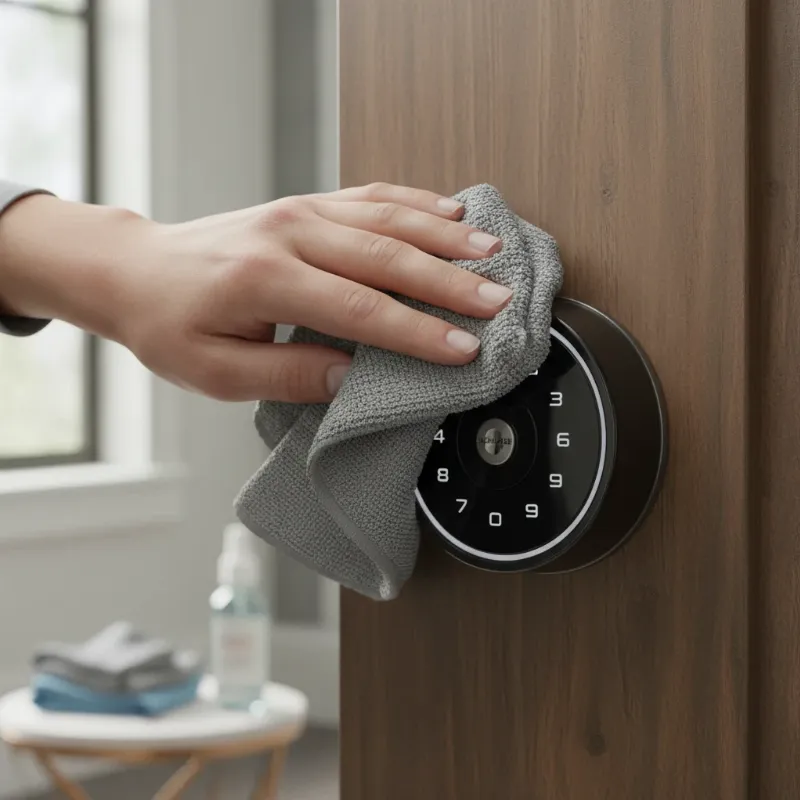 A person cleaning the keypad of a Schlage smart lock with a soft cloth to ensure optimal performance.
Conclusion
Mastering the factory reset of your Schlage smart lock empowers you to manage your home’s security with confidence and precision. This process is an invaluable tool for ensuring your smart lock remains secure, functions optimally, and adapts to your changing needs, whether for selling your home, troubleshooting issues, or enhancing overall security. By following the detailed steps for models like the Schlage Encode and Connect, and by understanding the implications of a full reset, you can maintain a robust and reliable smart home security system. Ready to take full control of your smart lock’s security?
Frequently Asked Questions
Is factory resetting my Schlage lock safe?
|
Our Picks for the Best smart locks in 2026
As an Amazon Associate I earn from qualifying purchases.
|
||
| Num | Product | Action |
|---|---|---|
| 1 | Wyze Palm Lock, Smart Door Lock with Palm Vein Recognition, Keyless Entry Smart Locks for Front Door, Keypad, Auto Lock, Dual Battery, Wi-Fi, Works with Alexa & Google, BHMA, IP53, Mechanical Key |

|
| 2 | ULTRALOQ U-Bolt Pro WiFi Smart Lock with Door Sensor, 8-in-1 Keyless Entry Door Lock with Fingerprint ID, App Remote Control, Built-in WiFi Keypad Deadbolt, Auto Unlock, IP65 Waterproof, Easy Install |
|
| 3 | Schlage Encode Smart WiFi Deadbolt Lock for Front Door - Keyless Entry with App or Touchscreen - Works with Alexa, Hey Google, & Airbnb - Create Codes for Guests - Satin Nickel Silver |
|
| 4 | Wyze Auto-Lock Bolt v2, Fingerprint Keyless Entry Smart Lock, AI Learning Scanner with Wi-Fi Front Door Lock Deadbolt, Auto-Lock, 8 Months Battery, BHMA2, IP53, Anti-Peep Keypad, Backup Keys |
|
| 5 | Schlage Encode Smart WiFi Deadbolt Lock for Front Door - Keyless Entry with App or Touchscreen - Works with Alexa, Hey Google, & Airbnb - Create Codes for Guests - Matte Black |
|
| 6 | Smart Door Lock with Camera Fingerprint Keyless Entry Door Lock Electronic Deadbolt with Keypad Code, App Remote Control, Auto Unlock for Front Door |
|
| 7 | TEEHO TE001 Keyless Entry Door Lock with Keypad - Smart Deadbolt Lock for Front Door with 2 Keys - Auto Lock - Easy Installation - Matte Black |
|
| 8 | Tapo Smart Wi-Fi Deadbolt Door Lock – Keyless Tactile Buttons, Customized Access with in-App Monitoring, Auto-Lock, IP54 Weatherproof, BHMA Grade 3, Compatible with Standard Door Sizes, Tapo DL100 |
|
| 9 | Smart Door Handle Lock with Keypad: Yamiry Fingerprint Smart Knob - Keyless Entry Digital Lock for Front Door - Deadbolt with APP - Generate Passcode Remotely - DIY Installation |
|
| 10 | Yale Security Assure Lock 2 Deadbolt, Black Suede Keyed Smart Entry Door Lock with Wi-Fi Connected Keypad for Code Entry and Remote Access, YRD410-WF1-BSP |
|
Yes, a factory reset is a safe and often necessary procedure. It clears all personal data and settings, returning the lock to its original secure state. This is particularly important when transferring ownership or troubleshooting persistent issues, ensuring no sensitive access information remains on the device.
What if I lost my default codes after a factory reset?
If you’ve performed a factory reset and cannot locate the default programming and user codes, you will need to contact Schlage customer support. They can assist you in retrieving these essential codes by verifying your lock’s serial number, allowing you to reconfigure your device securely.
How often should I factory reset my smart lock?
A factory reset is not a routine maintenance task. It should only be performed when necessary, such as when selling your home, experiencing significant functional issues that cannot be resolved otherwise, or if there’s a serious security concern requiring a complete data wipe.
Does a factory reset update the lock’s firmware?
No, a factory reset does not update the lock’s firmware. Firmware updates are separate processes, usually performed through the Schlage Home app or your smart home hub, and are crucial for applying security patches and performance improvements. Always keep your firmware current for optimal security.
Will a factory reset fix all problems with my Schlage smart lock?
While a factory reset can resolve many software-related glitches, connectivity issues, or corrupted settings, it may not fix hardware malfunctions. If your lock continues to experience problems after a factory reset, it might indicate a physical defect requiring professional repair or replacement.