Smart locks are more than just a convenience; they are a cornerstone of modern home security and automation, offering remote access, activity logs, and seamless integration with other smart home devices. However, the true power of a smart lock hinges on a stable Wi-Fi connection. When this connection falters, the benefits quickly disappear, leaving you with a device that might feel more frustrating than futuristic. Experiencing connectivity issues with your smart lock can be incredibly vexing, from unexpected disconnections to complete refusal to join your home network.
This comprehensive guide is designed to help you diagnose and resolve the most common Wi-Fi connection problems affecting your smart lock. We’ll walk through step-by-step solutions, from basic checks to more advanced troubleshooting, ensuring your smart lock operates reliably and keeps your home secure and convenient.
Understanding Smart Lock Wi-Fi Connectivity
|
Our Picks for the Best smart locks in 2026
As an Amazon Associate I earn from qualifying purchases.
|
||
| Num | Product | Action |
|---|---|---|
| 1 | Smart Door Handle Lock with Keypad: Yamiry Fingerprint Smart Knob - Keyless Entry Digital Lock for Front Door - Deadbolt with APP - Generate Passcode Remotely - DIY Installation |

|
| 2 | Schlage Encode Smart WiFi Deadbolt Lock for Front Door - Keyless Entry with App or Touchscreen - Works with Alexa, Hey Google, & Airbnb - Create Codes for Guests - Satin Nickel Silver |
|
| 3 | Wyze Auto-Lock Bolt v2, Fingerprint Keyless Entry Smart Lock, AI Learning Scanner with Wi-Fi Front Door Lock Deadbolt, Auto-Lock, 8 Months Battery, BHMA2, IP53, Anti-Peep Keypad, Backup Keys |
|
| 4 | Wyze Palm Lock, Smart Door Lock with Palm Vein Recognition, Keyless Entry Smart Locks for Front Door, Keypad, Auto Lock, Dual Battery, Wi-Fi, Works with Alexa & Google, BHMA, IP53, Mechanical Key |
|
| 5 | ULTRALOQ U-Bolt Pro WiFi Smart Lock with Door Sensor, 8-in-1 Keyless Entry Door Lock with Fingerprint ID, App Remote Control, Built-in WiFi Keypad Deadbolt, Auto Unlock, IP65 Waterproof, Easy Install |
|
| 6 | Tapo Smart Wi-Fi Deadbolt Door Lock – Keyless Tactile Buttons, Customized Access with in-App Monitoring, Auto-Lock, IP54 Weatherproof, BHMA Grade 3, Compatible with Standard Door Sizes, Tapo DL100 |
|
| 7 | Schlage Encode Smart WiFi Deadbolt Lock for Front Door - Keyless Entry with App or Touchscreen - Works with Alexa, Hey Google, & Airbnb - Create Codes for Guests - Matte Black |
|
| 8 | TEEHO TE001 Keyless Entry Door Lock with Keypad - Smart Deadbolt Lock for Front Door with 2 Keys - Auto Lock - Easy Installation - Matte Black |
|
| 9 | Yale Security Assure Lock 2 Deadbolt, Black Suede Keyed Smart Entry Door Lock with Wi-Fi Connected Keypad for Code Entry and Remote Access, YRD410-WF1-BSP |
|
| 10 | Smart Door Lock with Camera Fingerprint Keyless Entry Door Lock Electronic Deadbolt with Keypad Code, App Remote Control, Auto Unlock for Front Door |
|
At its core, a smart lock uses Wi-Fi to communicate with your home network, allowing you to control it via a smartphone app, receive notifications, and integrate it into a broader smart home ecosystem. Most smart locks, especially those designed for battery efficiency, primarily operate on the 2.4GHz Wi-Fi band. This band offers a wider range and better penetration through walls compared to the faster 5GHz band, which is why it’s the standard for many smart home devices that don’t require high bandwidth. A stable 2.4GHz connection is therefore paramount for your lock’s consistent performance.
Common Reasons Your Smart Lock Loses Wi-Fi Connection
Before diving into solutions, it’s helpful to understand the culprits behind a failing Wi-Fi connection. Several factors can disrupt your smart lock’s ability to stay online:
- Weak Wi-Fi Signal: If your smart lock is too far from your router, or if there are too many physical obstructions, the signal might be too weak to maintain a stable connection.
- Router Overload or Malfunction: An outdated router, one that’s connected to too many devices, or simply one that needs a reboot can struggle to provide consistent network access.
- Outdated Software: Both the smart lock’s firmware and its companion mobile application require regular updates. Old software versions can lead to compatibility issues and connectivity bugs.
- Low Battery Levels: Smart locks are battery-powered, and a critically low battery can impair their ability to connect and communicate effectively over Wi-Fi.
- Wireless Interference: Other electronic devices, such as microwaves, cordless phones, baby monitors, or even neighboring Wi-Fi networks, can interfere with your lock’s signal.
- Incorrect Setup or Network Settings: During the initial setup, incorrect Wi-Fi credentials, an unstable network during pairing, or specific router settings can prevent a successful connection.
- Temporary Network Delays: Sometimes, your home network might experience brief delays or instability, causing temporary disconnections for battery-saving devices like smart locks.
Step-by-Step Troubleshooting Guide
Resolving Wi-Fi connection issues with your smart lock often involves a systematic approach. Follow these steps to get your lock back online.
1. Check Your Wi-Fi Network First
Begin by verifying that your home Wi-Fi network is functioning correctly. Ensure other devices like your smartphone or laptop can connect to the internet without issues. If not, restart your Wi-Fi router by unplugging it, waiting for 30 seconds, and then plugging it back in. It’s also a good practice to ensure your router isn’t overloaded with too many connected devices, as some routers struggle when managing over 20-30 connections simultaneously. For optimal performance with smart devices, consider assigning distinct names to your 2.4GHz and 5GHz Wi-Fi bands if your router combines them, to ensure your smart lock connects to the appropriate 2.4GHz network.
2. Assess Your Smart Lock’s Location and Signal Strength
Proximity is key for reliable Wi-Fi. Your smart lock should be within a reasonable range of your router. You can use a Wi-Fi analyzer app on your smartphone to measure the signal strength near the lock; a signal value of at least -50 dBm is generally recommended for stable connections. If the signal is weak, try moving your router closer to the lock, or consider using a Wi-Fi extender or mesh system to boost coverage in that area. Thick walls or large metal objects can also degrade Wi-Fi signals, so repositioning the lock or router slightly might help.
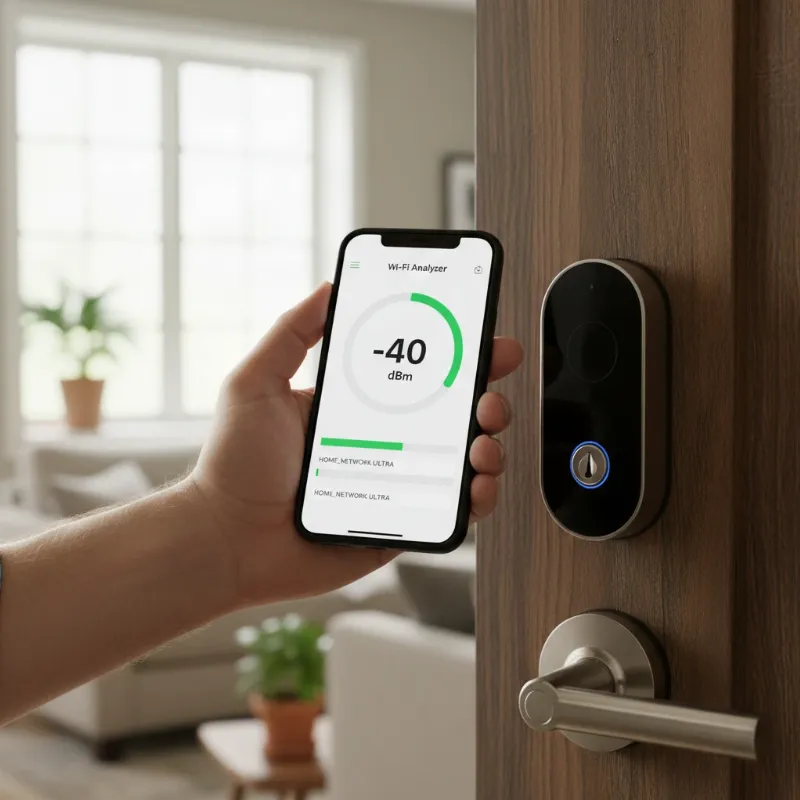 A hand holding a smartphone showing a Wi-Fi analyzer app with strong signal strength near a smart lock.
3. Reboot Your Smart Lock
Often, a simple reboot can clear temporary glitches and restore connectivity. Power off your smart lock if it has a power button, or remove its batteries for a few seconds before reinserting them. This power cycle can refresh the lock’s internal systems and re-establish its connection to the network. Always check the battery level of your lock, as low power can significantly impact its wireless performance.
4. Update Firmware and App
Outdated software is a frequent cause of connectivity problems. Check for available updates for both your smart lock’s firmware and its companion mobile application. Manufacturers regularly release updates to improve performance, enhance security, and fix bugs, including those related to Wi-Fi. Ensure both your smart lock’s firmware and the app are running the latest versions, which can often be found in the app’s settings or through manufacturer websites.
5. Reconnect the Smart Lock to Wi-Fi
If the connection is persistently unstable or lost, you might need to re-pair the lock with your Wi-Fi network. Open your smart lock’s app and follow the manufacturer’s instructions for reconnecting. This process typically involves putting the lock into a pairing mode and selecting your Wi-Fi network within the app. Ensure the lock is within Wi-Fi range during this process to prevent setup failures.
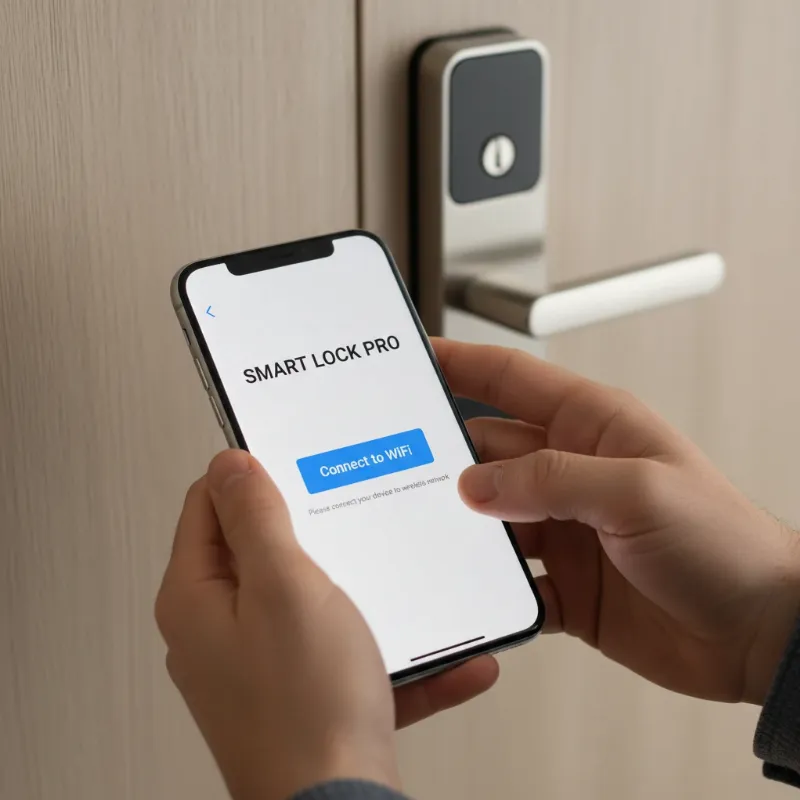 A person using a smartphone to reconnect a smart lock to Wi-Fi through its dedicated mobile application.
6. Minimize Wireless Interference
Interference from other electronic devices can degrade your Wi-Fi signal. If your smart lock uses Bluetooth or other wireless protocols in addition to Wi-Fi, consider if there are any devices nearby that could be causing issues. Try to move potential sources of interference, such as cordless phones, microwaves, or large metal appliances, away from your smart lock and Wi-Fi router. Even thick walls can act as barriers, so adjusting the location of your lock or router can sometimes make a difference.
7. Reset Your Smart Lock to Factory Settings
If all other troubleshooting steps have failed, a factory reset might be necessary. This will erase all configurations and data from your smart lock, returning it to its original out-of-the-box state. You will then need to set it up again as if it were a new device. Always refer to your smart lock’s user manual for specific instructions on how to perform a factory reset, as the process varies by manufacturer. Be aware that this is a drastic step, so ensure you’ve exhausted all other options first.
Advanced Troubleshooting Tips
Sometimes, the issue may be more nuanced:
- Reduce Network Device Load: If your router is struggling, temporarily disconnecting other non-essential devices from your Wi-Fi can free up bandwidth and resources for your smart lock.
- Check Router Compatibility: Ensure your router’s security protocols (e.g., WPA2/WPA3) are compatible with your smart lock. Most modern locks support WPA2, but some older models or specific router configurations might cause issues.
- Address Temporary Wi-Fi Delays: If your lock connects but frequently disconnects, wait 5-10 minutes and try again. Sometimes, unstable Wi-Fi connections can cause temporary delays, and the lock will attempt to rebuild its connection.
“A reliable Wi-Fi connection is the invisible key to truly unlock the full potential of your smart lock, transforming it from a mere gadget into an indispensable home management tool.”
When to Contact Support
If you have diligently followed all troubleshooting steps and your smart lock still refuses to connect or maintain a stable Wi-Fi connection, it’s time to reach out to the manufacturer’s customer support. They can provide brand-specific solutions, arrange for diagnostics, or, if necessary, assist with warranty claims or replacements for a defective unit. Be prepared to describe the steps you’ve already taken, as this will help them narrow down the problem more quickly.
Conclusion
A smart lock with consistent Wi-Fi connectivity offers unparalleled peace of mind and convenience, allowing you to manage your home’s security from anywhere. While Wi-Fi connection issues can be frustrating, most can be resolved with a systematic approach to troubleshooting. By checking your network, assessing signal strength, keeping software updated, and performing routine reboots, you can ensure your smart lock remains a reliable guardian of your home. Don’t let a lost connection diminish your smart home experience; empower yourself with these solutions to keep your smart lock online and fully functional.
Have you encountered a unique Wi-Fi issue with your smart lock and found an unexpected solution?
Frequently Asked Questions
Is a 2.4GHz Wi-Fi network better for smart locks than 5GHz?
Yes, generally. Most smart locks are designed to connect to the 2.4GHz Wi-Fi band. This band offers a wider range and better penetration through walls and obstacles, making it more suitable for devices that are often installed further from the router or behind doors, ensuring a more stable and reliable connection for your smart lock.
How often should I update my smart lock’s firmware?
It’s recommended to update your smart lock’s firmware whenever a new version is released by the manufacturer. These updates often include security patches, performance enhancements, and bug fixes that can improve connectivity and overall functionality. Enabling automatic updates in the companion app, if available, can help ensure you don’t miss important updates.
Can a low battery cause Wi-Fi issues in a smart lock?
Absolutely. A low battery can significantly impact your smart lock’s performance, including its ability to maintain a stable Wi-Fi connection. The wireless module requires sufficient power to operate effectively. If your smart lock frequently disconnects or struggles to connect, checking and replacing the batteries should be one of your first troubleshooting steps.