Let’s be honest, we’ve all been there. Juggling keys is a hassle. I remember a time I had to leave work in the middle of a frantic day just to let a plumber in, all because of a tiny piece of metal. Traditional keys feel outdated in our connected world. This is where the magic of smart locks comes in, and learning how to give guest access on a smart lock is a total game-changer for modern homeowners. It’s not just about ditching keys; it’s about reclaiming your time, enhancing your security, and managing your home with unprecedented ease.
Why Would You Even Need to Give Guest Access?
Before we dive into the “how,” let’s talk about the “why.” The ability to grant temporary, remote access is one of the most powerful features of a smart lock. It moves your front door from a simple barrier to a dynamic, intelligent entry point.
Think about these everyday scenarios:
- Family & Friends: Your cousin is visiting for the weekend but their flight lands while you’re still at work. Instead of leaving a key under the mat (a major security risk!), you can send them a temporary code that works only for the duration of their stay.
- Service Professionals: The dog walker, house cleaner, or contractor needs to get in. You can grant them access for a specific time window, say, every Tuesday from 1 PM to 3 PM. You’ll even get a notification when they arrive and leave.
- Vacation Rentals: If you manage an Airbnb or short-term rental, this feature is non-negotiable. You can generate a unique code for each guest that automatically activates at check-in and expires at check-out. No more key handoffs or lost keys.
- Emergencies: A neighbor needs to check on your pet while you’re away unexpectedly. You can grant them immediate, one-time access right from your phone, no matter where you are in the world.
The Different Flavors of Guest Access: What Are Your Options?
Not all guest access is created equal. Most modern smart locks, like those from our Smartlocks Pro series, offer several ways to let people in. Understanding these options helps you choose the right one for any situation.
1. Temporary PIN Codes
This is the most common method. You generate a numeric code (like 1234 or a more complex one) that is only active for a specific period. You can set it to work for a few hours, a few days, or even a few weeks. Once the time expires, the code is automatically deactivated.
- Best for: Weekend guests, short-term renters.
- How it works: You create the code in your smart lock’s mobile app and set a start and end date/time. You then share the code with your guest via text or email.
2. Scheduled or Recurring Access
This is perfect for people who need regular access to your home. Instead of a code that expires after a set period, this one works on a recurring schedule.
- Best for: Housekeepers, dog walkers, nannies.
- How it works: In the app, you create a code and assign it to a specific schedule, for example, “every weekday between 9 AM and 5 PM.” The code will only work during those times.
3. One-Time Use Codes
Just as it sounds, this is a code that works only once. The moment it’s used to unlock the door, it’s instantly deactivated.
- Best for: Deliveries, letting a contractor in for a quick one-off job.
- How it works: Generate the code in your app and share it. It’s the digital equivalent of opening the door for someone yourself and then closing it right behind them.
4. App-Based Access (Virtual Keys)
For more tech-savvy guests or family members, you can grant them access through the smart lock app itself. They’ll receive an invitation to download the app and create an account. Once set up, they can use their own smartphone to lock and unlock your door via Bluetooth or Wi-Fi.
- Best for: Long-term guests, family members, or a trusted partner.
- How it works: You send an invitation from your app to their phone number or email. You can still set time limits and schedules for their virtual key.
Your Step-by-Step Guide: How to Give Guest Access on a Smart Lock
While the exact steps can vary slightly between brands, the general process is remarkably consistent and user-friendly. It all happens within the smartphone app that controls your lock.
- Open Your Smart Lock App: On your smartphone, launch the app associated with your smart lock (e.g., the Smartlocks Pro Connect app). Make sure you are logged in as the primary owner.
- Navigate to the “Users” or “Guests” Menu: Look for a section in the app’s navigation bar or settings menu labeled something like “Guest Access,” “Manage Users,” “Family & Guests,” or a simple person icon.
- Add a New Guest: Tap the option to “Add Guest,” “Create New Code,” or a “+” symbol. You’ll likely be prompted to give your guest a name (e.g., “Dog Walker,” “Jane Smith”) so you can easily identify them in your activity log.
- Choose the Type of Access: This is where you’ll select from the options we discussed above. Choose whether you want to grant Always-On, Scheduled, or Temporary access. Select the one that best fits your needs.
- Set the Parameters:
- If you chose Temporary, you will set a start date/time and an end date/time.
- If you chose Scheduled, you will select the days of the week and the time window when access should be active.
- If you’re creating a PIN, the app will either auto-generate one for you or let you create a custom 4-8 digit code.
- Share the Credentials: Once the access is created, the app will give you an easy way to share it. You can typically send the PIN code or the app invitation directly via text message, email, or another messaging app. The message will usually include simple instructions for the guest.
- Monitor and Manage: That’s it! You can now see your new guest listed in the app. From here, you can monitor when they use their code, edit their access schedule, or revoke their access entirely at any time with a single tap.
Security Pro Tip: Always review guest permissions regularly. If a contractor’s job is finished or a guest has checked out, make it a habit to immediately delete their code or virtual key from your app. Never let old, unused credentials linger.
What to Look for in a Smart Lock for Superior Guest Management
If you’re in the market for a new lock, or perhaps upgrading an old one, guest access features should be at the top of your checklist. Not all locks handle this a-list feature the same way. When you’re comparing models, ask these questions. You can find many of these features in our latest lineup of Smartlocks Pro models.
- How many guest codes can I create? Some basic models limit you to a handful, while more advanced ones allow for dozens or even hundreds of unique codes.
- Does it require a Wi-Fi bridge? Some locks use Bluetooth only, meaning you have to be physically near the lock to create or change guest codes. A lock with a Wi-Fi bridge or built-in Wi-Fi allows you to manage access from anywhere in the world.
- What does the activity log show? A good smart lock provides a detailed, time-stamped log of every lock and unlock event, telling you exactly who opened your door and when.
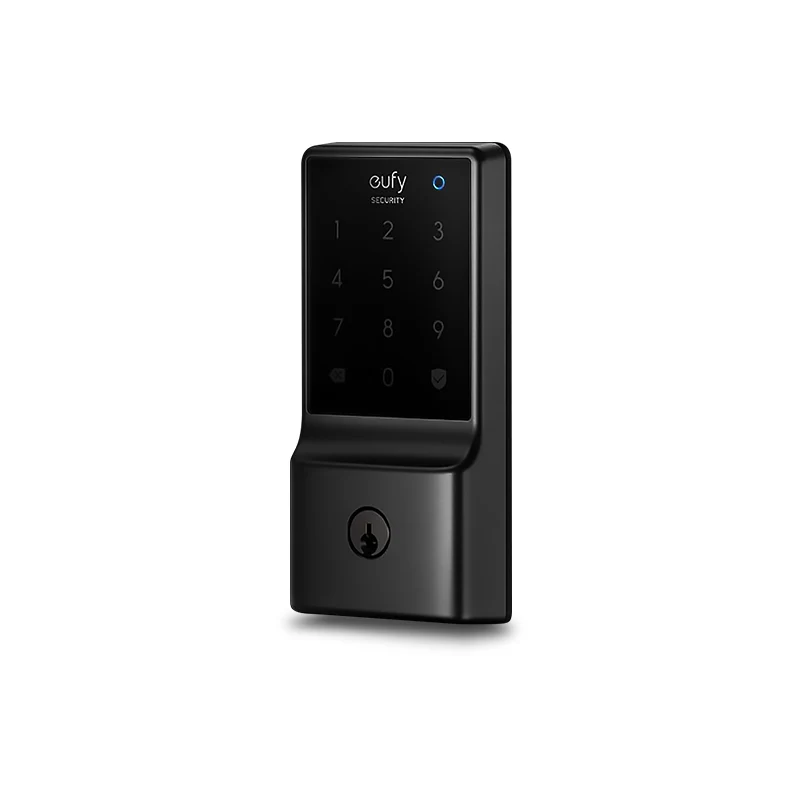
- Is it easy for the guest to use? A simple keypad is often the most foolproof method for guests who may not be technically inclined.
|
Our Picks for the Best Smartlocks in 2026
As an Amazon Associate I earn from qualifying purchases.
|
||
| Num | Product | Action |
|---|---|---|
| 1 | TEEHO TE001 Keyless Entry Door Lock with Keypad - Smart Deadbolt Lock for Front Door with 2 Keys - Auto Lock - Easy Installation - Matte Black |

|
| 2 | Keyless Entry Fingerprint Smart Lock with Handle & Keypad: Sifely Biometric Digital Electronic Lock with Code, Electric Deadbolt Door Knob for Front, Interior, Exterior & Bedroom Doors (Silver) |
|
| 3 | ULTRALOQ U-Bolt Pro WiFi Smart Lock with Door Sensor, 8-in-1 Keyless Entry Door Lock with Fingerprint ID, App Remote Control, Built-in WiFi Keypad Deadbolt, Auto Unlock, IP65 Waterproof, Easy Install |
|
| 4 | Schlage Encode Smart WiFi Deadbolt Lock for Front Door - Keyless Entry with App or Touchscreen - Works with Alexa, Hey Google, & Airbnb - Create Codes for Guests - Satin Nickel Silver |
|
| 5 | Smart Keypad Door Lock with Handle: NICE DIGI Keyless Entry Digital Lock for Front/Interior Door, Electronic Code Knob, Easy Installation |
|
| 6 | Keypad Smart Door Lock with Knob, Yamiry Keyless Entry Digital Lock with Handle, Fingerprint Electronic Knob for Front Door, Generate Passcode Remotely, Easy Installation |
|
| 7 | Keypad & Key Smart Door Lock, 50 User Codes, Waterproof, Auto Lock - Matte Black |
|
| 8 | Kwikset Powerbolt 250 10-Button Keypad Satin Nickel Transitional Electronic Deadbolt Door Lock, Featuring Convenient Keyless Entry, Customizable User Codes, Auto Locking |
|
| 9 | Yale Security Assure Lock 2 Deadbolt, Black Suede Keyed Smart Entry Door Lock with Wi-Fi Connected Keypad for Code Entry and Remote Access, YRD410-WF1-BSP |
|
| 10 | Schlage Encode Plus Smart Wi-Fi Lock for Front Door, Keyless Entry Deadbolt, Unlock with Apple Watch, Built-in WiFi and App Control, Easy Install, Alexa & Apple HomeKit Compatible, Matte Black |
|
As home security expert David Chen often says, “The best security system is one you’ll actually use. When it comes to guest access, simplicity for both the owner and the guest is paramount. A complicated system gets ignored, and that’s when vulnerabilities appear.”
Integrating Guest Access with Your Smart Home Ecosystem
The convenience doesn’t stop at your front door. Many top-tier smart locks integrate seamlessly with smart home platforms like Amazon Alexa, Google Home, and Apple HomeKit. This unlocks a new level of automation.
For example, you could create a “Guest Mode” routine. When you activate it, your smart home could:
- Enable your guest’s smart lock code.
- Turn on the hallway and guest room lights.
- Adjust the thermostat to a comfortable temperature.
- Disable certain security sensors in the guest area.
This level of integration makes your guests feel welcome and streamlines the management of your entire home, not just the front door.
Frequently Asked Questions (FAQ)
Q: Is it safe to give guest access on a smart lock?
A: Yes, it is significantly safer than leaving a physical key under the mat or in a lockbox. With a smart lock, you have full control. You can issue temporary codes that expire, monitor all activity, and instantly revoke access at any time. The access is protected by encryption and is tied to a specific person, unlike a key that can be lost or copied.
Q: Can I see when my guest uses their code to enter?
A: Absolutely. Nearly all Wi-Fi enabled smart locks provide a real-time activity log in their companion app. You’ll receive a notification on your phone the moment your door is unlocked and can see a history of who entered and at what time.
Q: What happens if a guest forgets their PIN code?
A: No problem. Since you have full control through your app, you can simply check the code you assigned them and resend it. Or, if you prefer, you can delete the old code and issue a brand new one in seconds.
Q: Do my guests need to have a smartphone to use guest access?
A: Not necessarily. If you issue a PIN code, your guest only needs to remember the number and enter it on the lock’s physical keypad. They only need a smartphone if you decide to grant them app-based access with a “virtual key.”
Q: Can I set a code to work only one time?
A: Yes, most advanced smart locks offer a “one-time use” option. This is perfect for single deliveries or letting a neighbor in to water your plants. Once the code is used to unlock the door, it is automatically and permanently disabled.
Mastering how to give guest access on a smart lock transforms your relationship with your home. It’s a simple, secure, and incredibly powerful tool that replaces the outdated anxiety of key management with the modern convenience of smart control. By upgrading to a system that puts you in the driver’s seat, you’re not just buying a new gadget; you’re investing in peace of mind and a more intelligent way of living.